If SmartTrader is available on your account and you’d rather use it over Deriv Trader, here’s how to actually navigate it and place a contract, along with a few things worth knowing about how its layout differs from the newer platform. SmartTrader is one of Deriv’s platforms for digital options, offering different contract types based on how you expect an underlying market to move. Deriv’s Help Centre provides an overview of how SmartTrader fits within its digital-options trading platforms.
For a smoother process following this guide, make sure you have a Deriv account.
Step 1: Check SmartTrader Is Available on Your Account
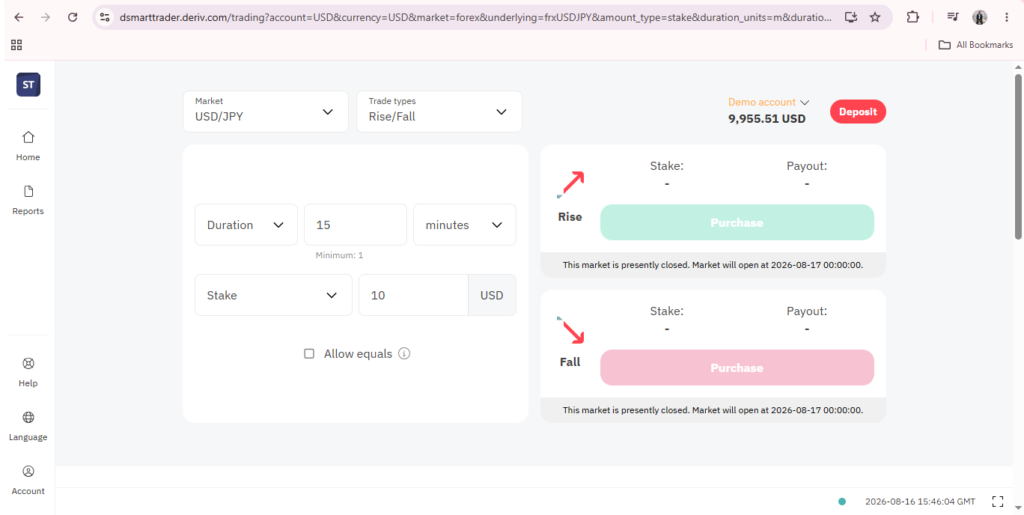
From Trader’s Hub, look for the SmartTrader option, usually listed alongside Deriv’s other platforms. If it’s not shown, it likely isn’t supported for your regional entity, and Deriv Trader is the available alternative offering the same underlying contract types. Availability can occasionally change as regulatory approvals shift, so it’s worth checking back periodically if it’s not currently listed for your account.
Step 2: Open SmartTrader
Click into SmartTrader to launch it directly in your browser, since it doesn’t require any download or installation. The platform loads into a single browser tab, similar to Deriv Trader, and uses your existing Deriv login, so there’s no separate registration step needed.
Step 3: Select a Market
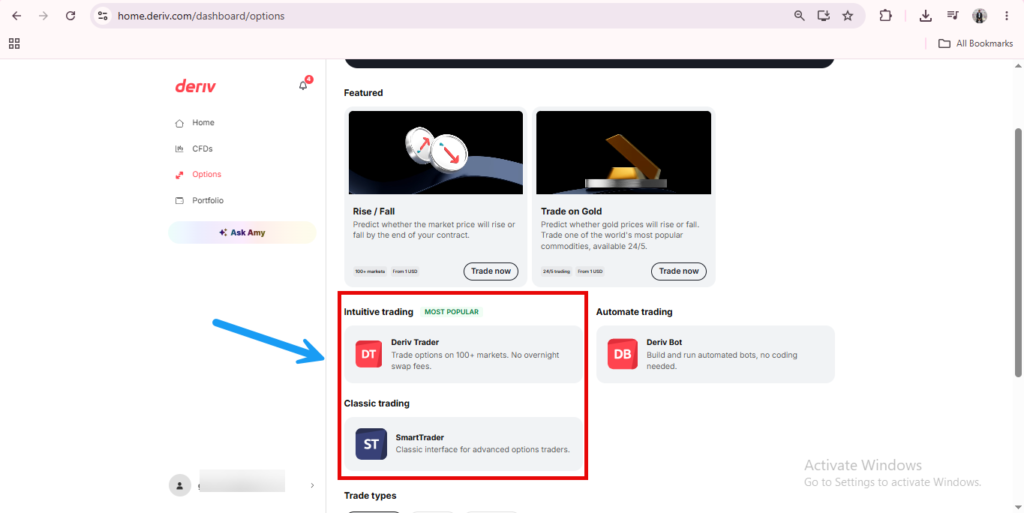
Use the market selector to choose the asset you want to view or trade. SmartTrader organizes markets into categories similarly to Deriv Trader, forex, synthetic indices, commodities, and more, though the menu itself is presented in a more list-based, form-heavy style rather than the visual tiles used elsewhere on newer platforms.

Step 4: Choose a Contract Type
Browse the available contract types, similar in structure to what’s offered on Deriv Trader, such as Rise/Fall or Higher/Lower. SmartTrader typically displays more of the contract’s parameters on screen simultaneously, which some users find useful for comparing options quickly, even though it can look more cluttered at first glance than Deriv Trader’s simplified panel.
Step 5: Set Your Stake and Duration
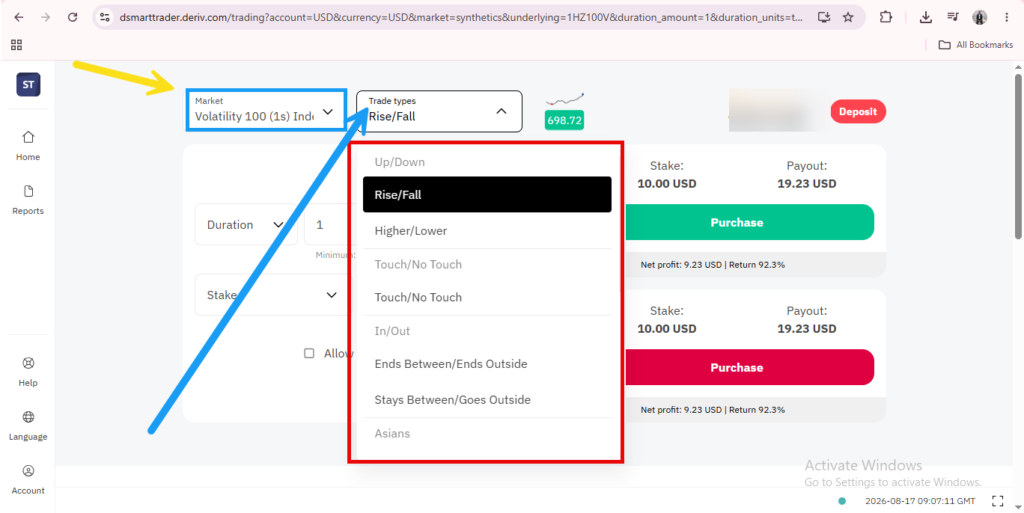
Fill in your stake and choose the contract’s duration before reviewing the potential payout shown. As with Deriv Trader, the payout is calculated and displayed before you confirm, so there’s no guesswork involved, you’ll see exactly what you stand to gain or lose before the contract is placed.

Step 6: Confirm and Monitor the Contract
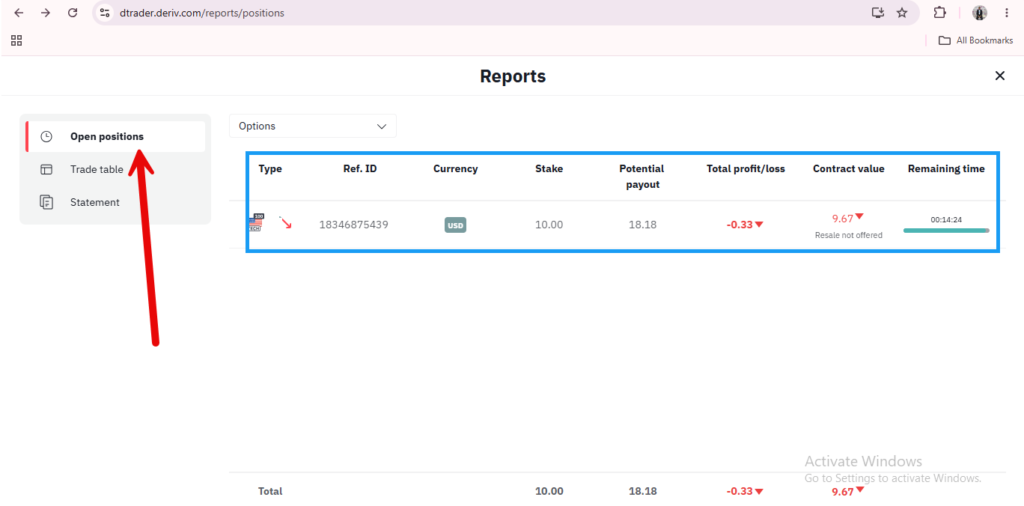
Click to place the trade, then track it from your open positions until it settles at expiry. SmartTrader’s open positions view lists active and recently settled contracts in a straightforward table, which some long-time users prefer over Deriv Trader’s more graphical positions panel.

Getting Comfortable With SmartTrader
Since the underlying contract types are similar to Deriv Trader, the main adjustment is simply getting used to SmartTrader’s layout. For a closer look at how the two platforms actually compare, our guide on What Is Deriv SmartTrader covers the differences in more depth.
Getting comfortable with a platform like this takes a bit of practice, but there’s also a way to benefit from Deriv that skips trading entirely and centers on referring others instead. It’s explained here, worth a look regardless of which platform you end up using.

FAQ: Using Deriv SmartTrader
Do I need a different login for SmartTrader than Deriv Trader? No, it generally uses the same account, since both platforms are built around similar contract types.
Can I switch between SmartTrader and Deriv Trader freely? Yes, as long as both are available on your account, you can move between them from Trader’s Hub.
Is SmartTrader available on mobile? It’s primarily accessed through a browser, so check current availability if you’re specifically looking for a mobile experience.
What should I do if SmartTrader isn’t showing on my account? This usually means it isn’t supported for your regional entity — Deriv Trader is the equivalent platform available to you instead.