How to Download MetaTrader 5 for Deriv on PC: Step-by-Step Guide

If you’re serious about trading with Deriv, having MetaTrader 5 (MT5) set up on your PC is a game-changer. It gives you access to advanced charting tools, a wide range of technical indicators, and a smooth, desktop-optimized trading experience that many traders prefer over mobile or web platforms. In this guide, we’ll walk you through exactly how to download and install MetaTrader 5 for Deriv on your PC, step by step, so you can get your trading setup ready in just a few minutes. You will also need to familiarize yourself with the MT5 User Interface Guide, from the official MetaTrader5 platform, to enjoy your user experience on MT5.

If you still need a Deriv account, create a Deriv account first so you can finish the desktop setup without stopping later. In a related article we guide you through step by step on How to install MT5 on Android if you also trade on the go.
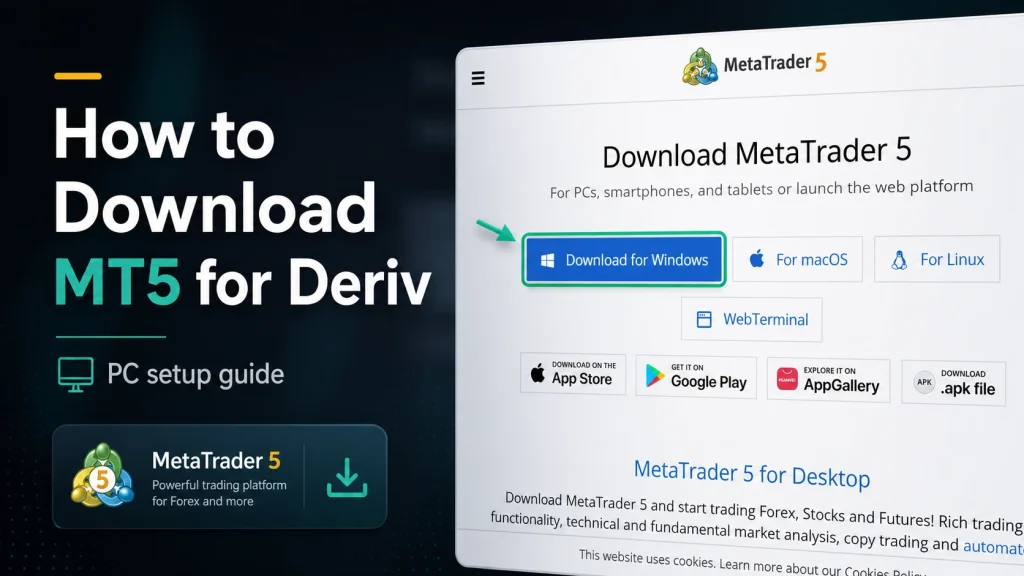
Screenshot showing a guide on how to download MetaTrader 5 for Deriv, highlighting the “Download for Windows” button, with additional options available for macOS, Linux, App Store, Google Play, and AppGallery.

Step 1: Go to Trader’s Hub on Deriv

Log into your Deriv account and open Trader’s Hub. If you don’t already have an MT5 account set up, you’ll need to create one here before downloading the desktop app.
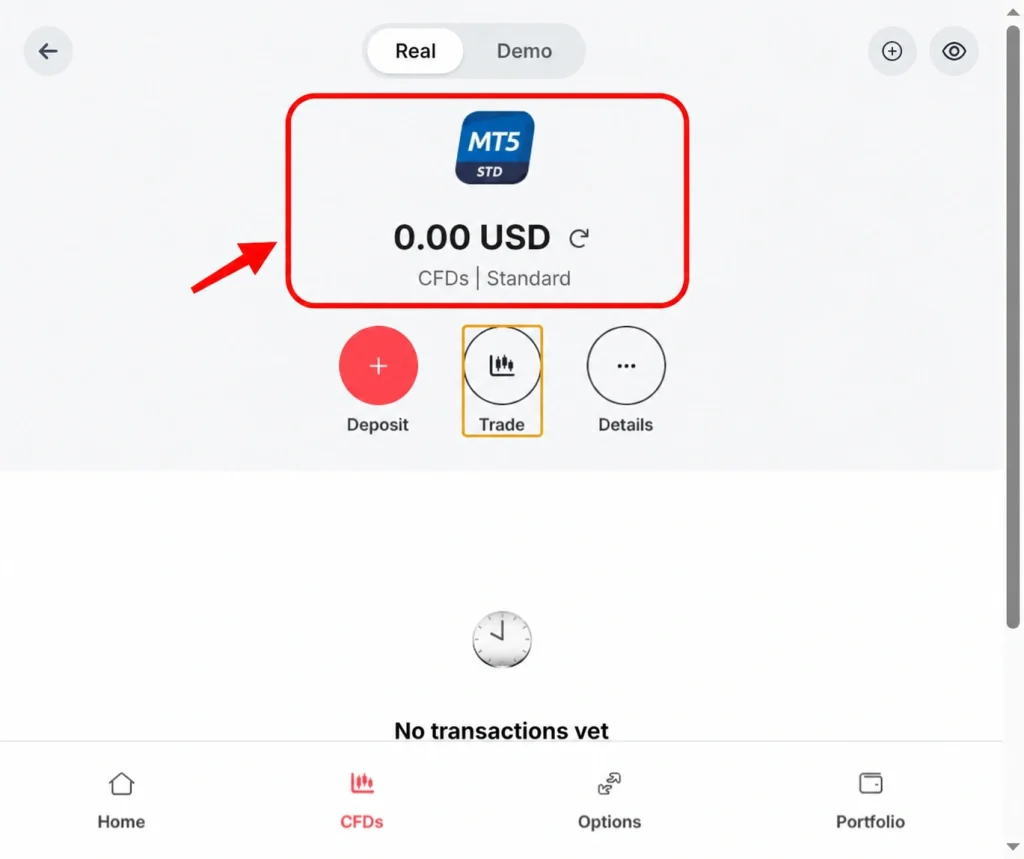
A trading app screen shows a MetaTrader 5 Standard account with a 0.00 USD balance. Below are options for Deposit, Trade, and Details. The "CFDs" tab is selected. No transactions are visible on this Deriv platform interface, prompting users to download the app for seamless trading access.
A trading app screen shows a MetaTrader 5 Standard account with a 0.00 USD balance. Below are options for Deposit, Trade, and Details. The “CFDs” tab is selected. No transactions are visible on this Deriv platform interface, prompting users to download the app for seamless trading access.

Step 2: Find the Download Option

Within the MT5 section, click “Download” next to the desktop option. This directs you to Deriv’s MT5 download page.
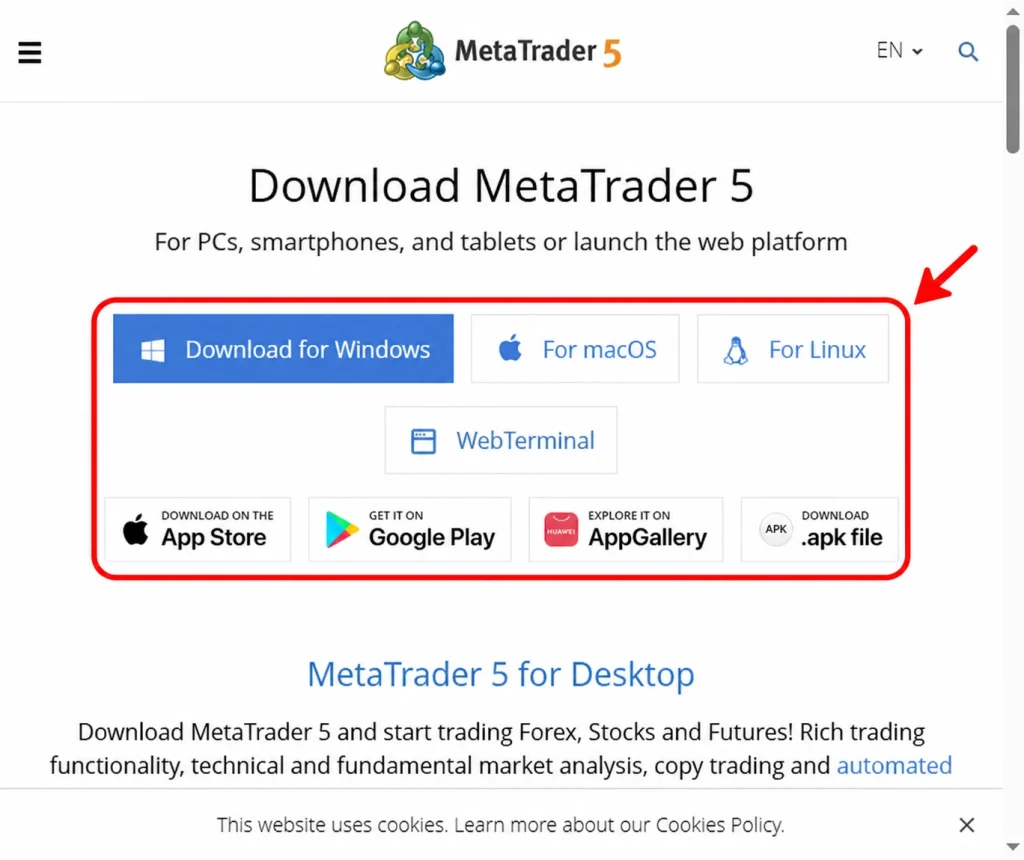
MetaTrader 5 download page featuring prominent buttons for Windows, macOS, Linux, WebTerminal, App Store, Google Play, AppGallery, and APK file—each highlighted by a red box and arrow—for seamless Deriv platform access and quick MetaTrader 5 download.

Step 3: Choose the Windows Installer

Select the Windows version of the MT5 installer. Deriv typically provides a direct download link for the desktop application.
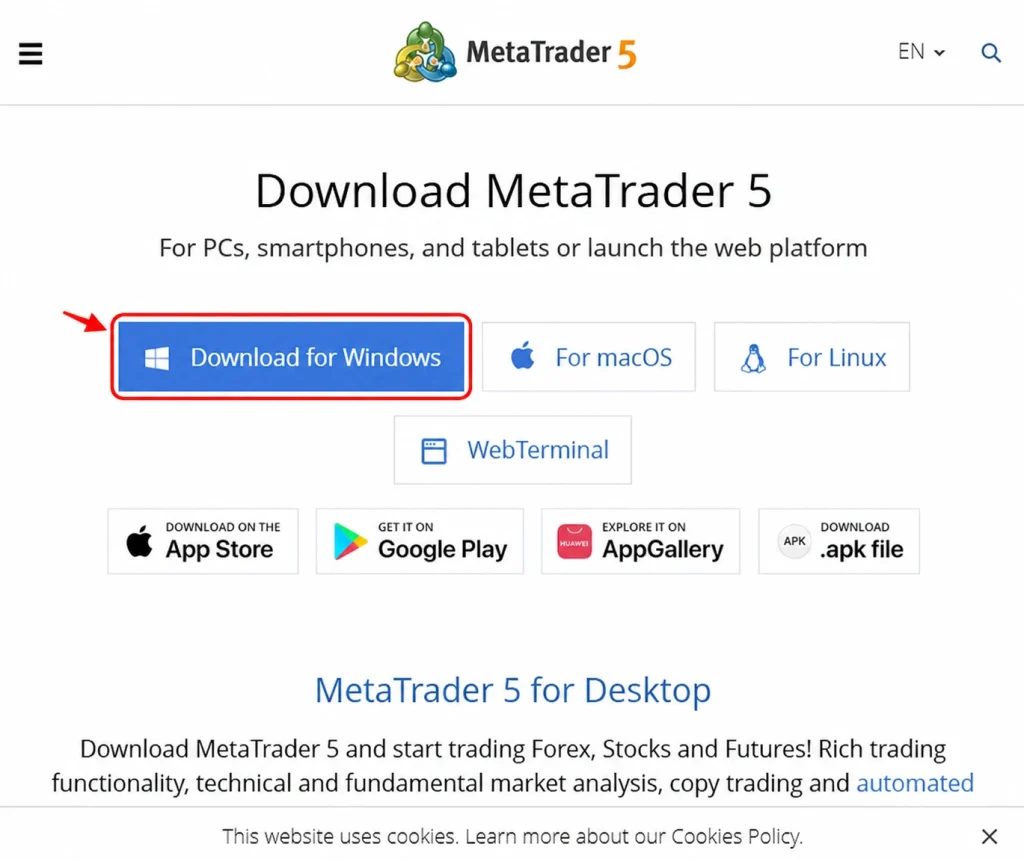
MetaTrader 5 download page by Deriv, featuring buttons for Windows, macOS, Linux, web terminal, Google Play, AppGallery, and APK. An arrow highlights the "Download for Windows" button.
MetaTrader 5 download page by Deriv, featuring buttons for Windows, macOS, Linux, web terminal, Google Play, AppGallery, and APK. An arrow highlights the “Download for Windows” button.

Step 4: Run the Installer

Once the file has downloaded, open it to begin installation. Follow the on-screen prompts, accepting the license agreement and choosing an installation location if asked.
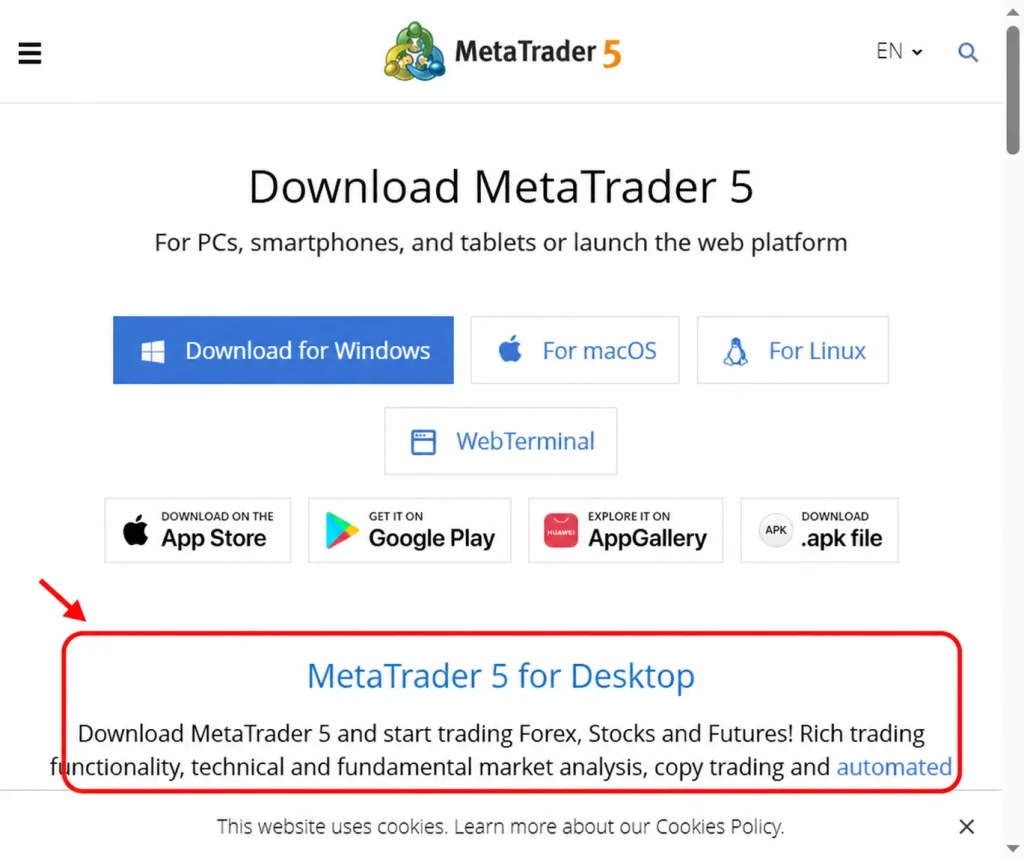
MetaTrader 5 download page with options for Windows, macOS, Linux, and app stores; a red arrow and box highlight “MetaTrader 5 for Desktop” and its brief description, making it easy for Deriv users to find the right Download option.

Step 5: Launch MT5 Once Installed

A globe with a red upward arrow and bar graph. Text: “Support traders and earn commissions. Discover success in forex affiliate marketing—partner with a global trading platform.” Red button says “Explore Program.”.

After installation completes, MT5 should open automatically. If not, find it in your Start menu or desktop shortcut and open it manually.
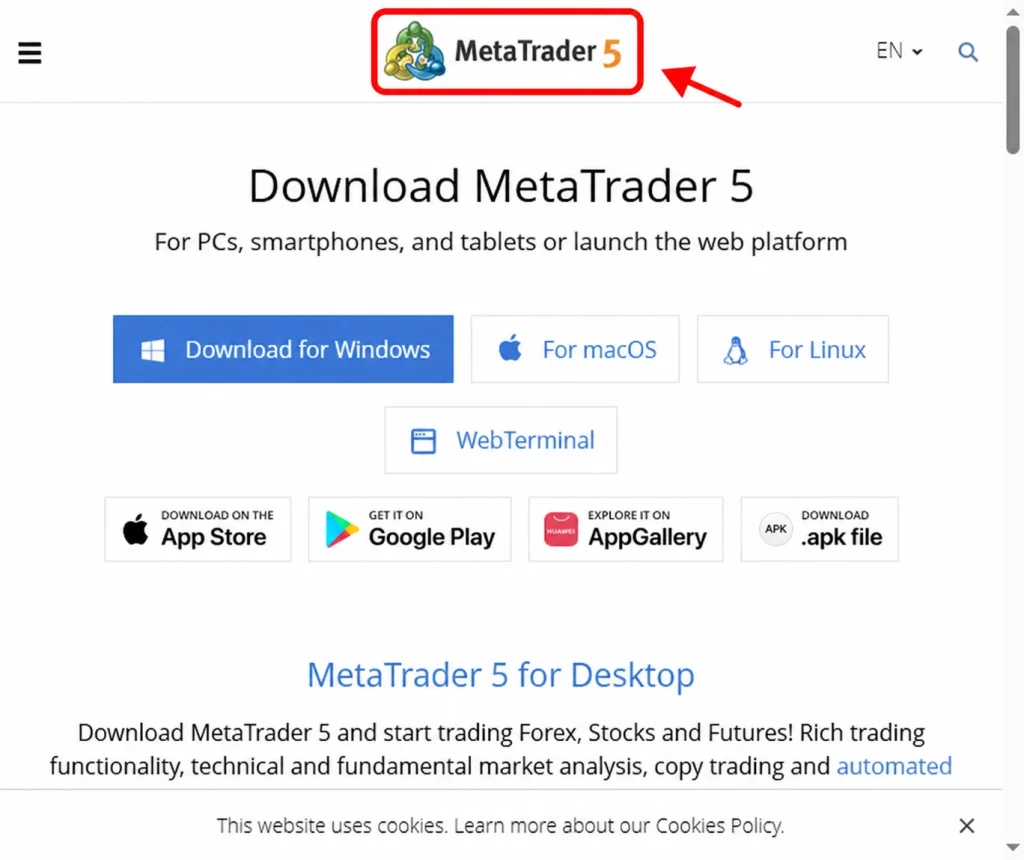
Screenshot of the MetaTrader 5 download page, featuring prominent Download buttons for Windows, macOS, and Linux, along with links to mobile app stores. A red arrow points to the MetaTrader 5 logo at the top, highlighting its compatibility with Deriv platforms.

Step 6: Log In With Your Deriv MT5 Details

Enter your Login ID, password, and server, all of which are available from your MT5 account details in Trader’s Hub. Click “Login” to connect.

If you want the login process explained in more detail, see our How to Log into MT5 on Deriv.
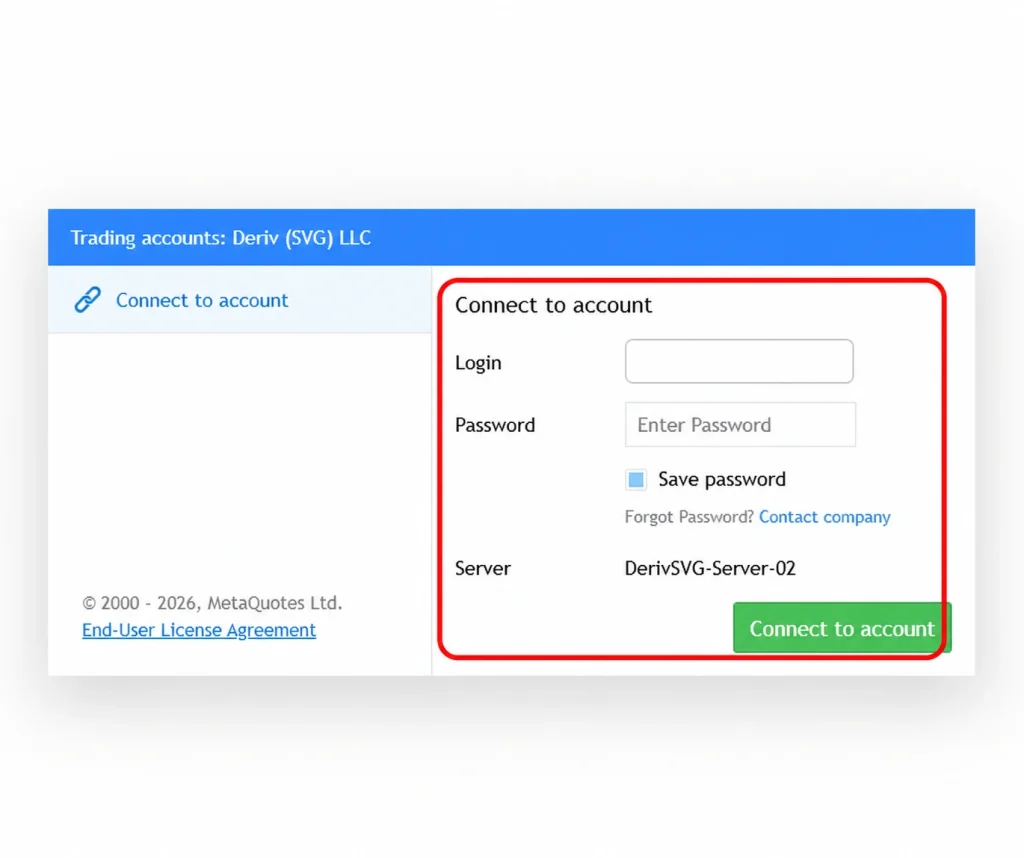
A login screen for Deriv (SVG) LLC trading accounts, designed for MetaTrader 5 users, showing fields for login, password, a "Save password" checkbox, and a "Connect to account" button. Server listed as DerivSVG-Server-02. Download and access your account seamlessly on the Deriv platform.
A login screen for Deriv (SVG) LLC trading accounts, designed for MetaTrader 5 users, showing fields for login, password, a “Save password” checkbox, and a “Connect to account” button. Server listed as DerivSVG-Server-02. Download and access your account seamlessly on the Deriv platform.

Step 7: Confirm You’re Connected

Once logged in, check the bottom right corner of the MT5 window for a connection signal, confirming your account is linked and live data is streaming. Once you have multiple accounts this guide How to switch between demo and real accounts on Deriv will help you to navigate through your MT5 accounts.

You’re Ready to Go

That’s the full process for getting MT5 running on your PC with Deriv. From here, your account balance, charts, and trading tools are all accessible directly from your desktop.

Did you know about the Deriv Partner Program? This is one of Deriv’s fastest growing communities. If you enjoy giving traders a helping hand then this is for you. Earn as an affiliate and add an income source in the process.

FAQ: Downloading MT5 for Deriv on PC

Is MT5 for PC free to download? Yes, downloading and installing MetaTrader 5 through Deriv doesn’t cost anything.

Do I need a Deriv MT5 account before downloading the desktop app? Yes, you’ll need to create an MT5 account through Trader’s Hub first, since the desktop app requires login credentials to connect.

What if MT5 won’t connect after installing? Double-check your Login ID, password, and server details against what’s shown in Trader’s Hub, since a mismatch is the most common cause of connection issues.

Can I use the same MT5 desktop installation for multiple accounts? Yes, you can log out and log back in with different credentials to switch between multiple MT5 accounts using the same installed application.

Promotional graphic for Deriv forex trading showing a green upward candlestick chart with a rising arrow, currency symbols, and icons highlighting fast execution, tight spreads, security, and an "Open Account" button.
Promotional graphic for Deriv forex trading showing a green upward candlestick chart with a rising arrow, currency symbols, and icons highlighting fast execution, tight spreads, security, and an “Open Account” button.
Learn Affiliate Marketing and Earn Online

Leave a Comment

Your email address will not be published. Required fields are marked *

Learn Affiliate Marketing and Earn Online
Scroll to Top