Every deposit, withdrawal, and internal transfer you make on Deriv leaves a paper trail and that trail is more useful than most traders realize. Reconciling your books, spotting a duplicate charge, or just double-checking a P2P trade all come down to one place: your transaction history. Deriv logs everything with timestamps and reference numbers, but the interface groups things in ways that aren’t always obvious at first glance. Here’s where to find it, how to filter it, and how to make sense of what you’re looking at. Reviewing your transaction history regularly helps you verify deposits, withdrawals, transfers, and other account activity. The Corporate Finance Institute also explains that account statements provide a complete record of transactions over a specific period, making them an important tool for tracking your finances.
If you have not done so yet you can create a Deriv account here.
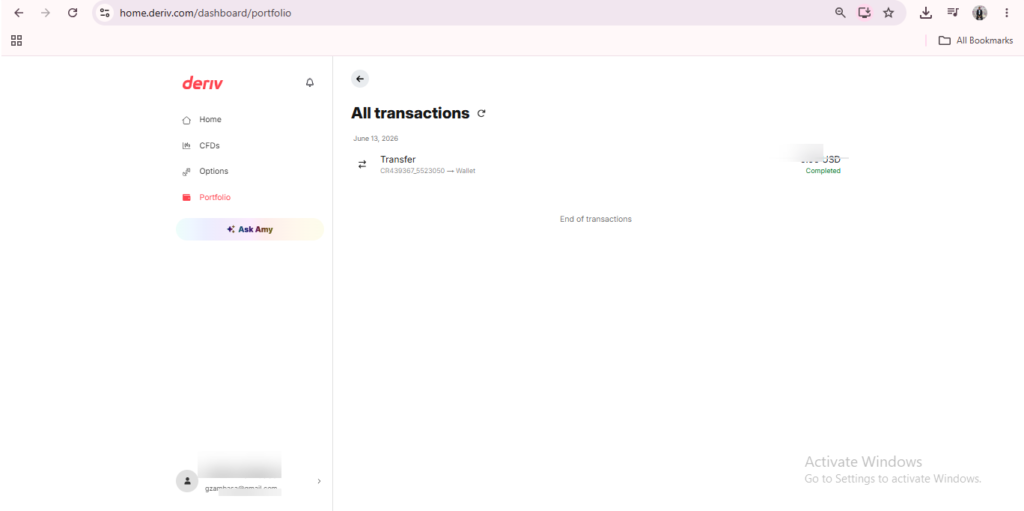
Transaction Type
Each entry is labeled as a deposit, withdrawal, transfer, or conversion. This is the first thing worth checking, since it tells you immediately what kind of activity you’re looking at.
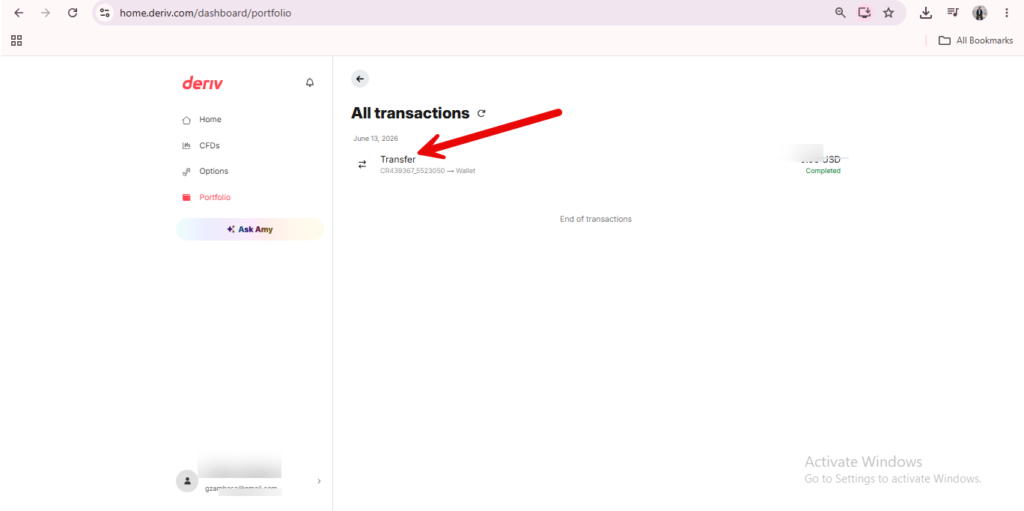
Amount and Currency
Next to the type, you’ll see the amount along with the currency it was processed in, which matters if you’re holding more than one Wallet currency at once. Typically you can only have one fiat currency and multiple crypto currencies.
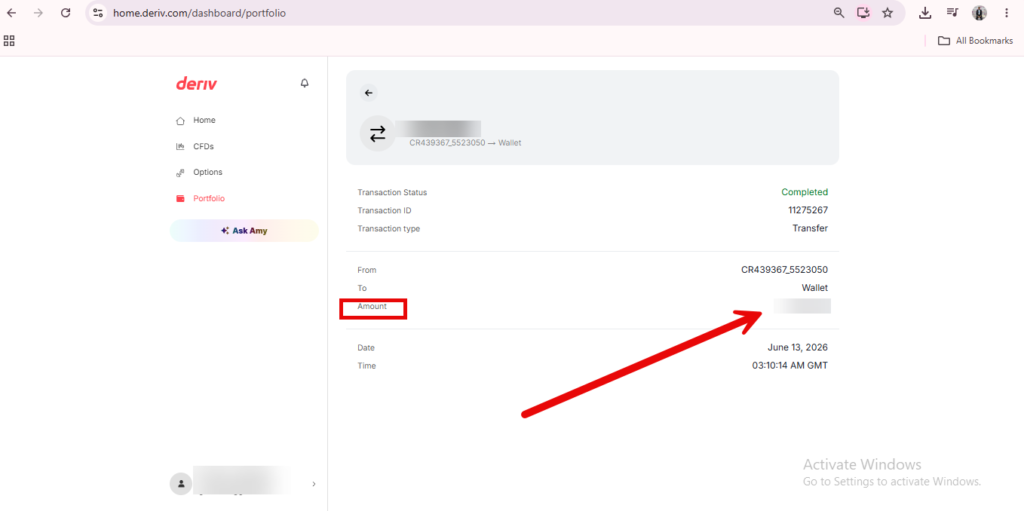
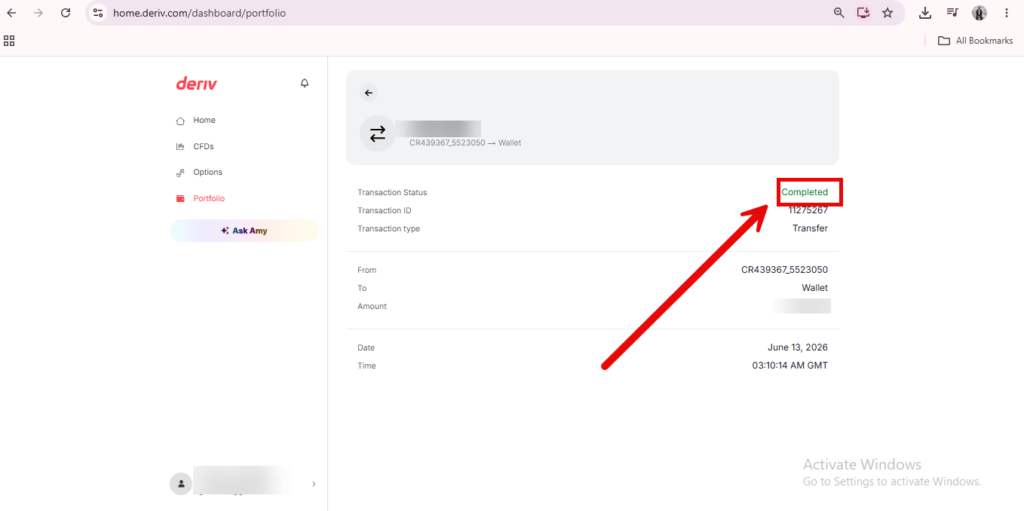
Status
Every transaction carries a status; typically pending, processing, completed, or failed. This is the field to check first if you’re wondering whether something has actually gone through.

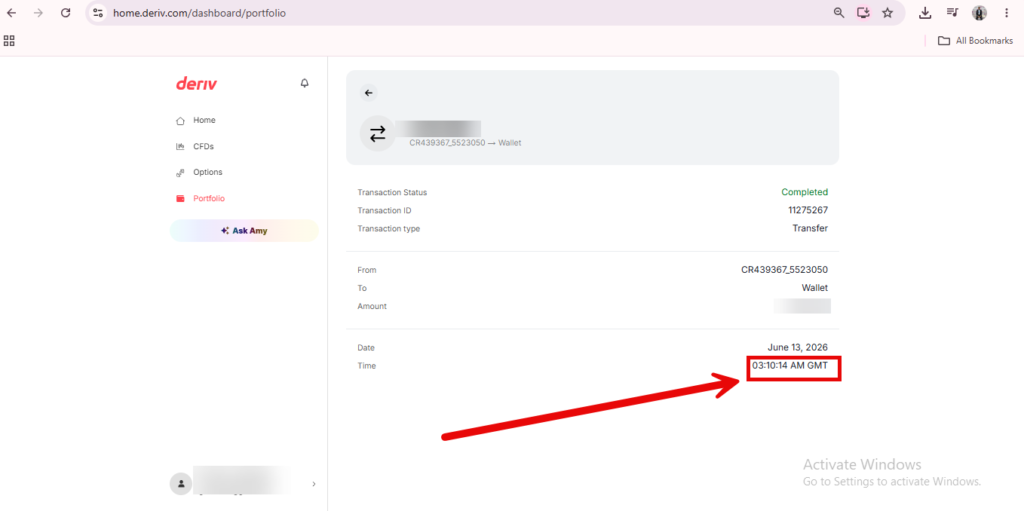
Date and Time
Each entry logs the exact date and time it was initiated, useful for cross-checking against your bank statement or wallet activity elsewhere.
Reference Number
Larger or more complex transactions, particularly bank transfers, usually include a reference number. This is the detail support will ask for if you ever need to raise an issue with a specific transaction.
Putting It Together
Once you know what each field represents, scanning your transaction history becomes a lot faster, whether you’re confirming a deposit cleared or tracking down a reference number for support. If a specific transaction seems stuck rather than just unclear, our guide on Why Is My Deriv Withdrawal Delayed, digs into that separately.
Once reading your own history becomes second nature, it’s worth knowing there’s a whole other layer to Deriv that revolves around bringing other people onto the platform, not trading yourself. A few minutes here explains how that side actually works. You can also find extra tools and support here should you decide to take that route.
FAQ: Reading Your Transaction History on Deriv
What does “processing” mean versus “pending”? Pending usually means the transaction hasn’t started moving yet, while processing indicates it’s actively being handled but not yet complete.
Where do I find the reference number for a specific transaction? Click into the individual entry, where the reference number is usually listed alongside the other transaction details.
Can I export my transaction history for my own records? Check for a download or export option within the Statement section, as availability can depend on your account type and region.
Why does a transaction show as failed? This can happen for several reasons, such as a declined card or a mismatched payment detail. Checking the entry’s detail usually clarifies the specific cause.