How to Install MT5 on iPhone for Deriv

Trading with MetaTrader 5 doesn’t have to be tied to your desktop. With the MT5 app available on iPhone, you can access advanced charting, real-time quotes, and full trading functionality right from your pocket. Whether you’re checking positions on your commute or placing trades between meetings, having MT5 installed on your iPhone keeps you connected to your Deriv account wherever you are. In this guide, we’ll walk you through exactly how to install MT5 on iPhone for Deriv, step by step, so you can start trading on the move. On the official Metatrader website you find MT5 platform settings to learn about how you can customize MT5 to suit your requirements.

If you need help with access or account setup, see How to Contact Deriv Support and How to Solve Deriv Login Problems.
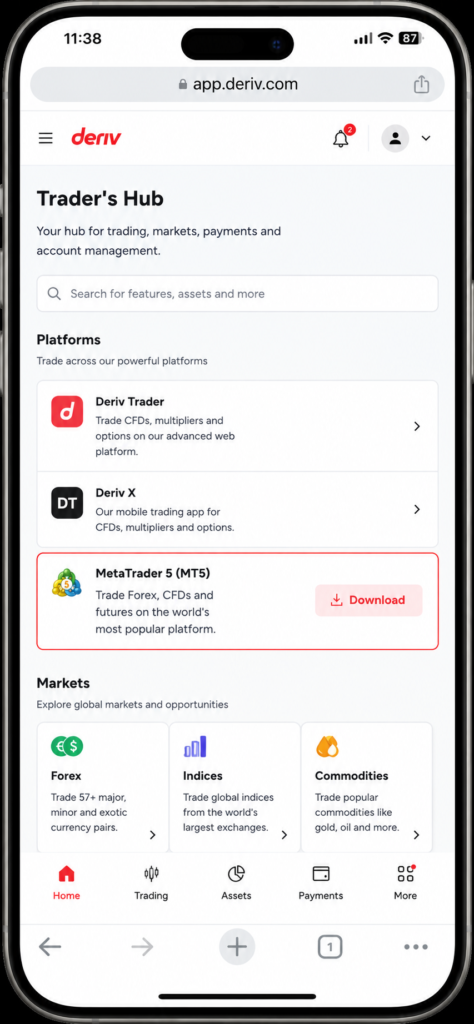
Screenshot of the Deriv Trader’s Hub webpage on a mobile device, displaying trading platform options and market types such as Forex, Derived, and Commodities. The MetaTrader 5 option features a prominent red Download button—ideal for users looking to download MetaTrader 5 iPhone or install MT5 on iPhone via the Deriv MT5 iOS app.

Step 1: Open Trader’s Hub on Your iPhone

Log into your Deriv account through Safari (or your preferred browser) and open Trader’s Hub. If you don’t already have an MT5 account, create one here before downloading the app.

Step 2: Tap the MT5 Download Option

In the MT5 section, tap “Download” next to the iOS option. This takes you to the App Store listing for MetaTrader 5.
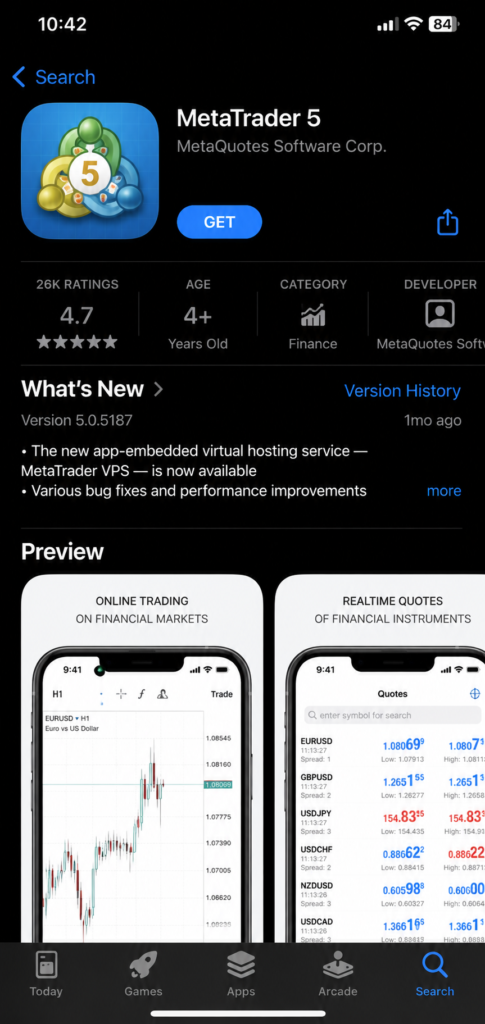
MetaTrader 5 app page in the App Store, showing an icon, ratings, age, developer info, what’s new, and preview images of trading features, charts, and real-time financial quotes—including quick links to install MT5 on iPhone or complete your MT5 mobile setup with Deriv.

Step 3: Install the App

Tap “Get”, then confirm with Face ID, Touch ID, or your Apple ID password. The app installs the same as any other iPhone app.
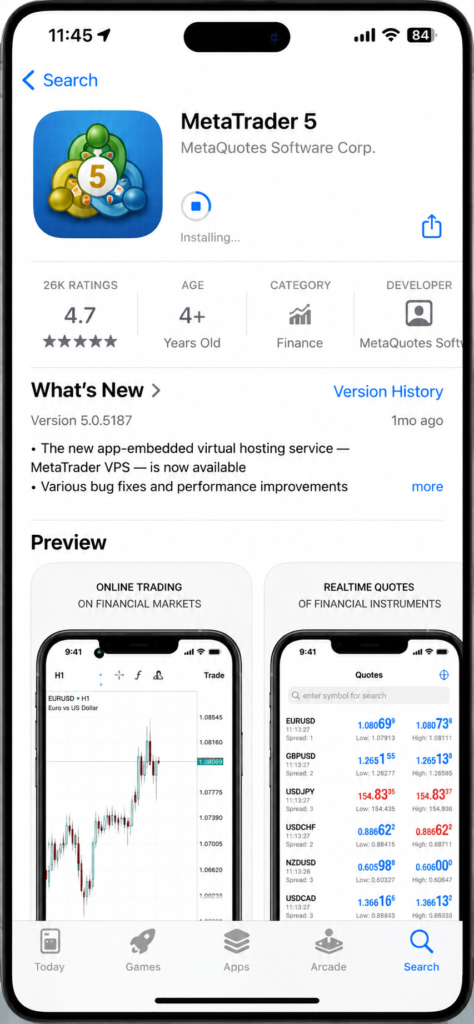
MetaTrader 5 app installing on an iPhone, showing app details, rating, age, and two preview images displaying financial charts and currency exchange rates. This screen highlights how easy it is to download MetaTrader 5 iPhone for quick access to live market data—perfect for your MT5 mobile setup Deriv experience.

Step 4: Open MT5 and Add Your Account

Once installed, open the app from your home screen. On first launch, choose “Login to an existing account” rather than creating a new one.
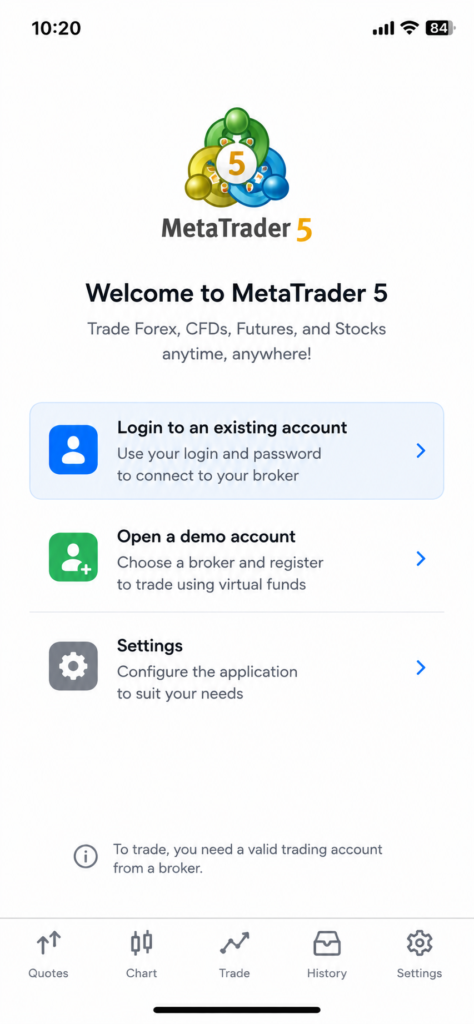

MetaTrader 5 app welcome screen with options to log in, open a demo account, or access settings. Menu icons appear at the bottom, making it easy for users who want to install MT5 on iPhone or enjoy seamless trading with the Deriv MT5 iOS app.
A digital ad for Deriv promotes trading synthetic indices 24/7, highlighting volatility and control. Icons show trading benefits, with a red "Start Now" button guiding users through the Deriv registration process. Red and black wavy lines enhance the look.
A digital ad for Deriv promotes trading synthetic indices 24/7, highlighting volatility and control. Icons show trading benefits, with a red “Start Now” button guiding users through the Deriv registration process. Red and black wavy lines enhance the look.

Step 5: Enter Your Deriv MT5 Login Details

Search for the Deriv-MT5 server, or enter it manually, then input your Login ID and password from your MT5 account details in Trader’s Hub.
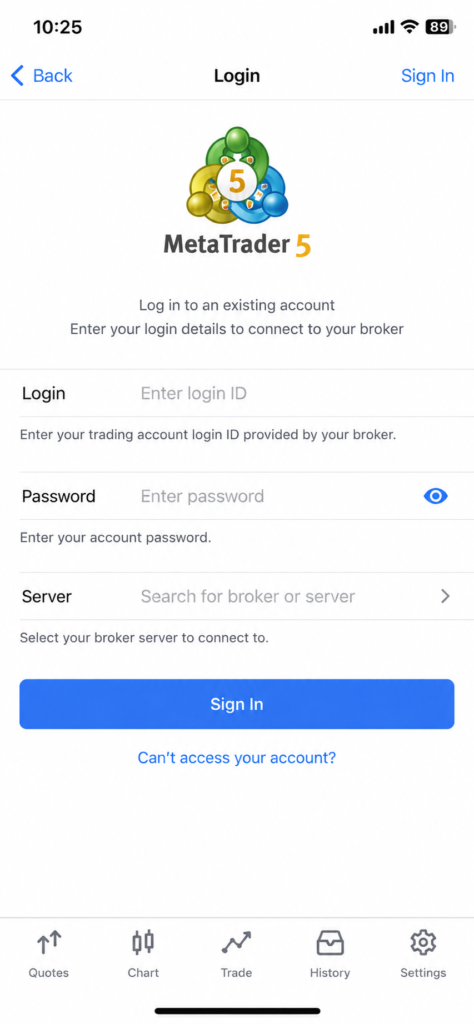
MetaTrader 5 login screen on a mobile device showing fields for Login, Password, Server, and a blue “Sign In” button, with navigation icons at the bottom—an interface similar to the MT5 mobile setup Deriv offers through the Deriv MT5 iOS app.

Step 6: Confirm You’re Connected

Once logged in, check your balance and account number against what’s shown in Trader’s Hub to confirm you’re connected to the right account.
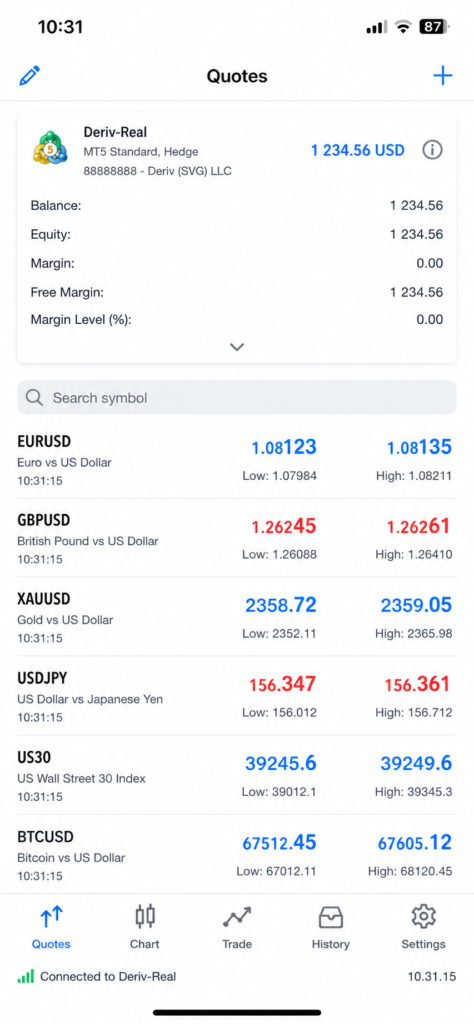

A mobile trading app screen—such as the Deriv iOS trading app—shows account balance, equity, and margin details at the top, with live forex, gold, and cryptocurrency quotes listed below for EURUSD, GBPUSD, XAUUSD, USDJPY, US30, and BTCUSD.
A globe with a red upward arrow and bar graph. Text: “Support traders and earn commissions. Discover success in forex affiliate marketing—partner with a global trading platform.” Red button says “Explore Program.”.

You’re Set Up

That’s MT5 installed and connected on iPhone. From here, charts, trading, and account management are all available directly from your phone. You can also check our guide How to install MT5 on android.

More and more traders are supplementing their income by joining the Deriv Partner Program and becoming affiliates. By simply introducing traders to Deriv you qualify for commissions from Deriv.

FAQ: Installing MT5 on iPhone for Deriv

Is the MT5 iOS app free? Yes, downloading and installing MetaTrader 5 from the App Store doesn’t cost anything.

Do I need an MT5 account before installing the app? Yes, create one through Trader’s Hub first, since the app requires login credentials to connect.

What if I can’t find the Deriv-MT5 server in the app? Try entering it manually using the exact server name shown in your MT5 account details in Trader’s Hub.

Can I use MT5 on iPhone and desktop with the same account? Yes, your login credentials work across all MT5 platforms, so you can switch between devices freely.
Learn Affiliate Marketing and Earn Online

Leave a Comment

Your email address will not be published. Required fields are marked *

Learn Affiliate Marketing and Earn Online
Scroll to Top
