Getting your trading platform set up correctly is the first step toward trading smarter, not harder. MetaTrader 5 (MT5) is one of the most powerful and widely used trading platforms in the world, offering advanced charting tools, multiple asset classes, and a seamless trading experience and Deriv makes it easy to connect your account to MT5 in just a few steps. Whether you’re new to Deriv or switching over from another platform, this guide walks you through exactly how to log into MetaTrader 5 using your Deriv credentials and get your MT5 account fully set up, so you can start trading with confidence. The MetaTrader5 Getting Started Guide from the official Metatrader website will help you with everything you need to know as a new or intermediate user of MT5.
If you do not yet have a Deriv Account you can create one here. Our guide How to create a Deriv Account is more detailed on which steps to follow.
Step 1: Log in to your Deriv account
Log into Deriv and go to Home from the main dashboard. This is where you’ll manage all your trading accounts, including MT5 demo accounts and real accounts.
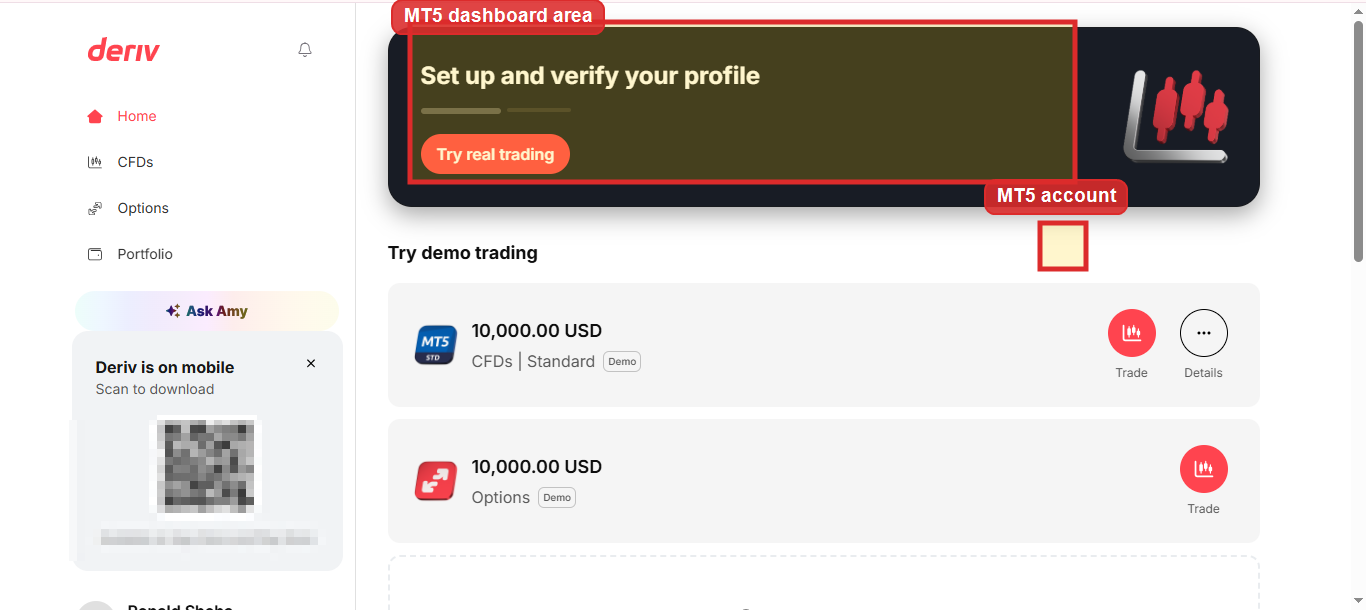
Step 2: Create Your Deriv MT5 Account
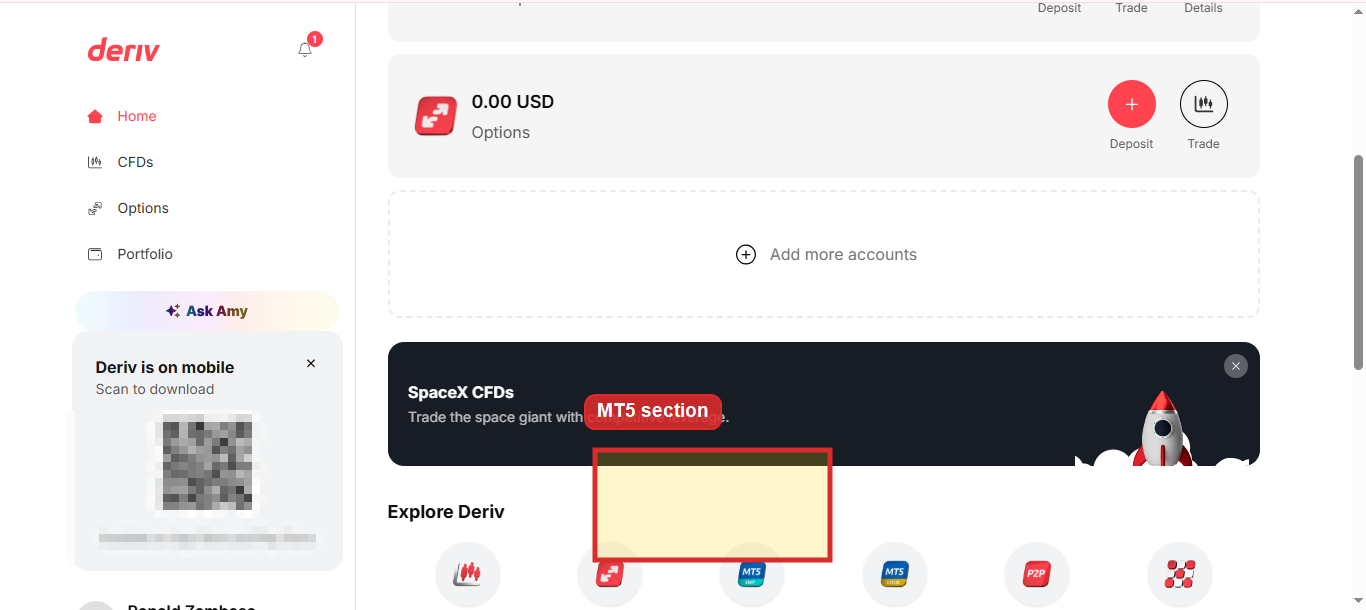
Under the “My Trading Accounts” section, click “Create account” or “add more accounts”as seen in the image below. You will be redirected to a page with account options including MT5. Our article Can you have multiple accounts on Deriv shows you what are the limits with regards to the number of accounts you can have.
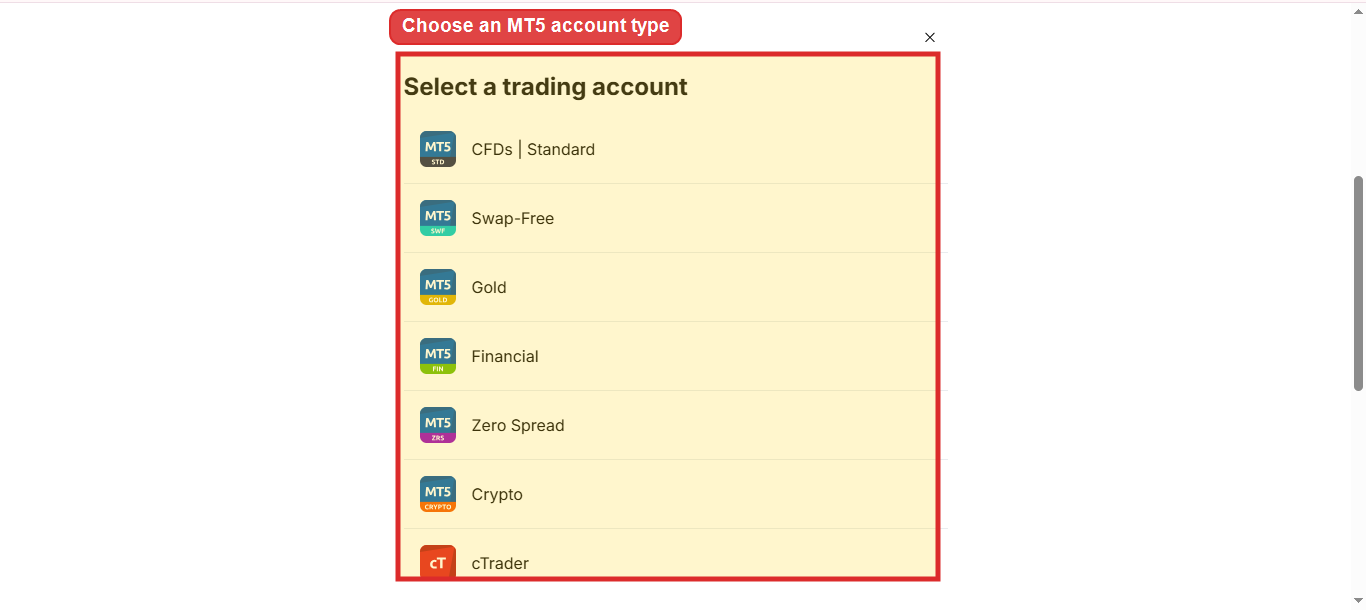
Click on the account type you want (for example, Standard, Financial, or Swap-Free). Follow the prompts to confirm your details and set up the account.
You will be redirected to the page below where you can see full features of your MT5 account including leverage, instruments, spread, commission and minimum deposit. You must click on “activate real account” to get the login details of your MT5.
You will be prompted to provide your password before you can proceed. From there you are redirected to the page below. Click on “view account” to see all details for your new MT5.
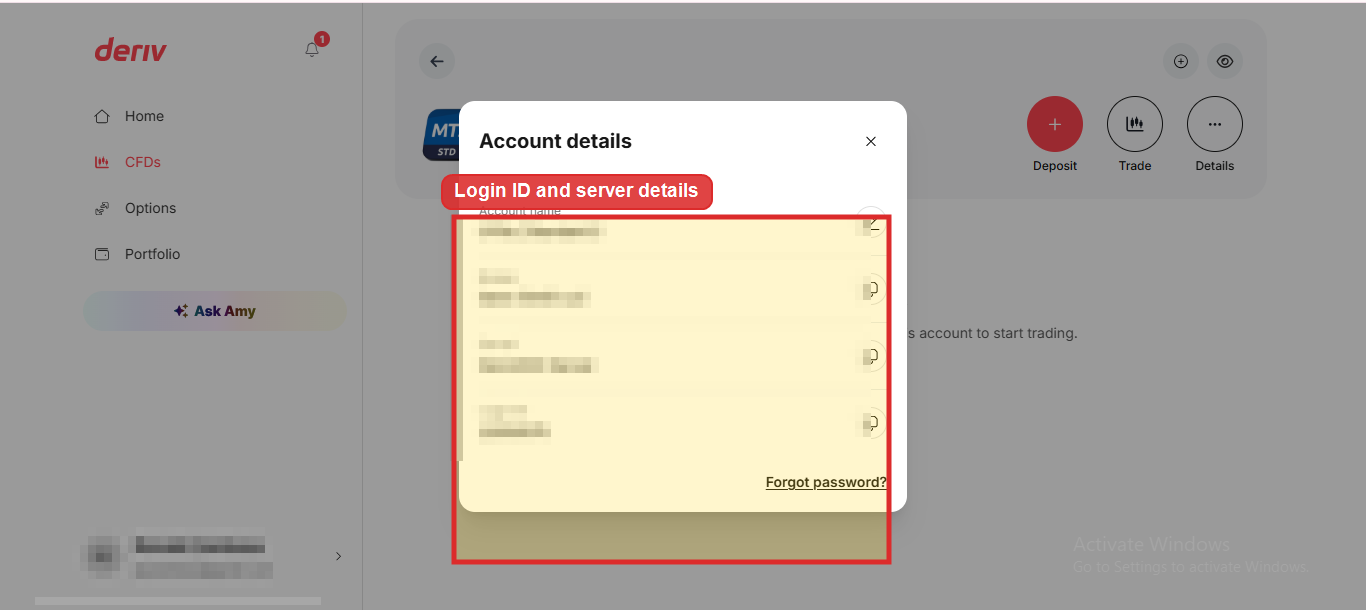
To view your MT5 details simply navigate to CFDs on your dashboard and proceed to select “details” as shown below. A panel will pop up with the account name, broker, server and log in ID. You do not need to save these details anywhere as they will always be available for you at the click of a button.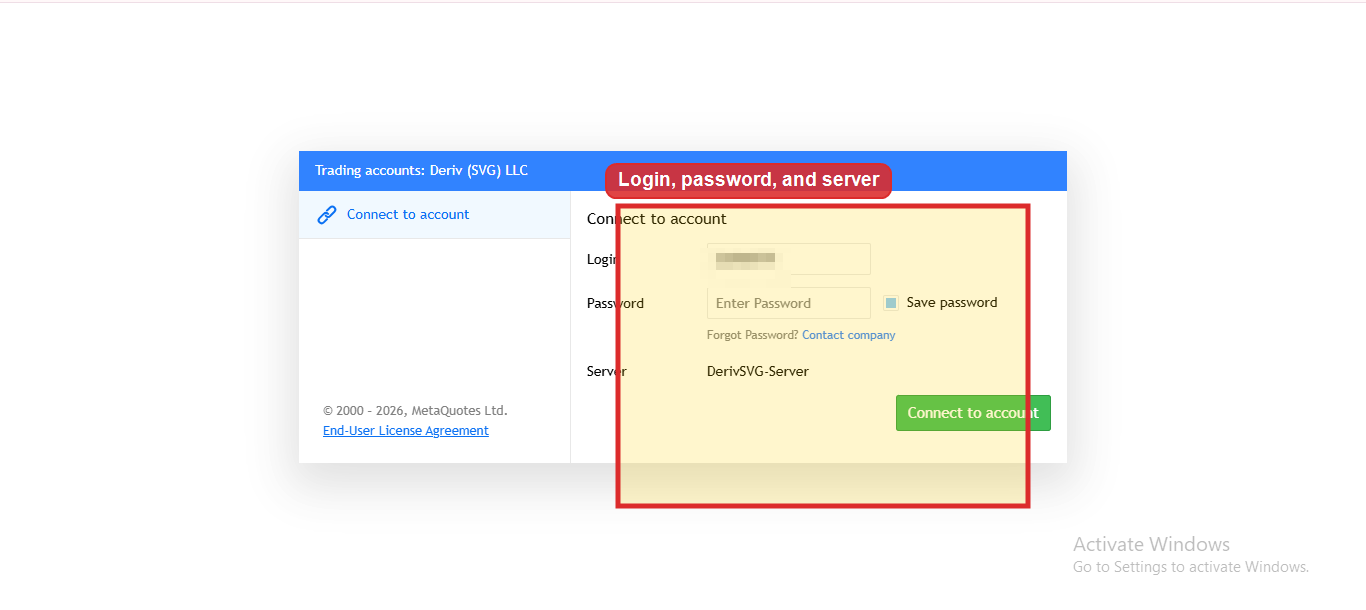
Step 3: Download the MT5 Platform

Deriv gives you a few ways to access MT5:
- You can use the desktop app for Mac and for PC
- You can use the mobile app for iOS and Android.
- MT5 WebTrader – runs directly in your browser, no download needed
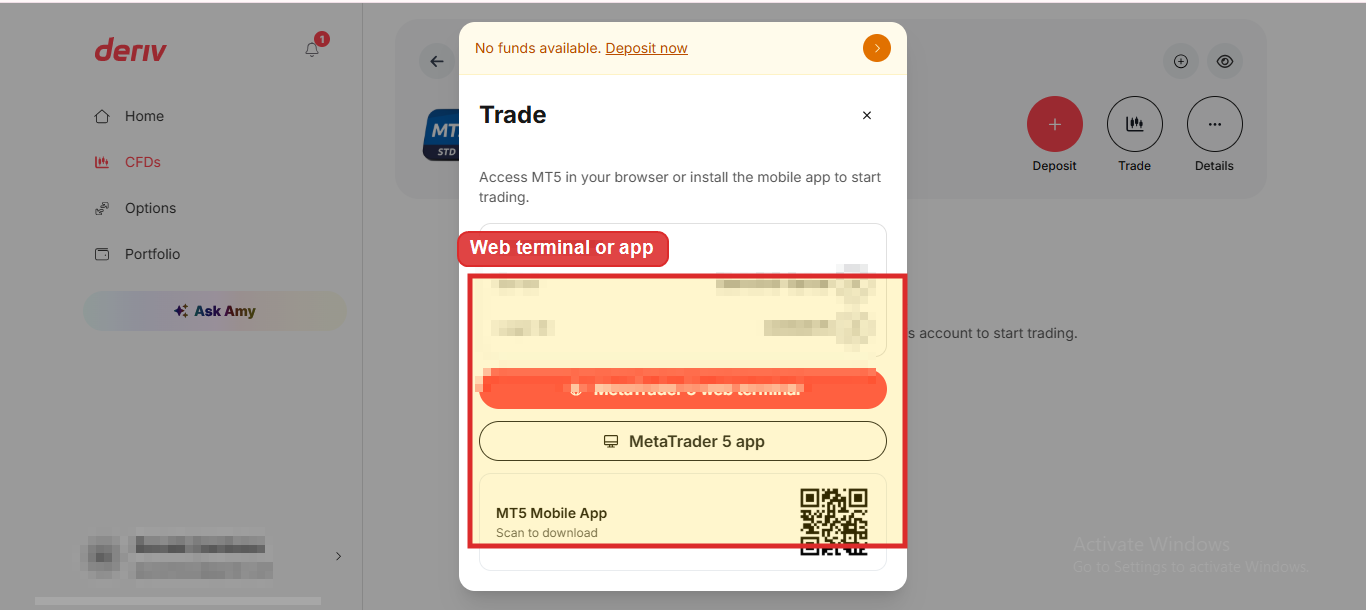
To download you must click on “trade” right next to “details”. After clicking you will see the panel below. Click again on MetaTrader 5 app to download the setup file. Double click on the set up file and follow the prompts to install on your computer. You can also choose WebTrader if you’d rather skip installation.For mobile simply scan the QR code as seen in the panel in the image below.
Step 4: Log into MT5 on Deriv
To log into your MT5 open the MT5 app (or WebTrader) and enter:
- Login ID – this number was provided when you created your MT5
- Password – your MT5 password (this is different from your Deriv password)
- Server – the Deriv-MT5 server shown on your account details page. If you choose the wrong server you will not be able to access your account.

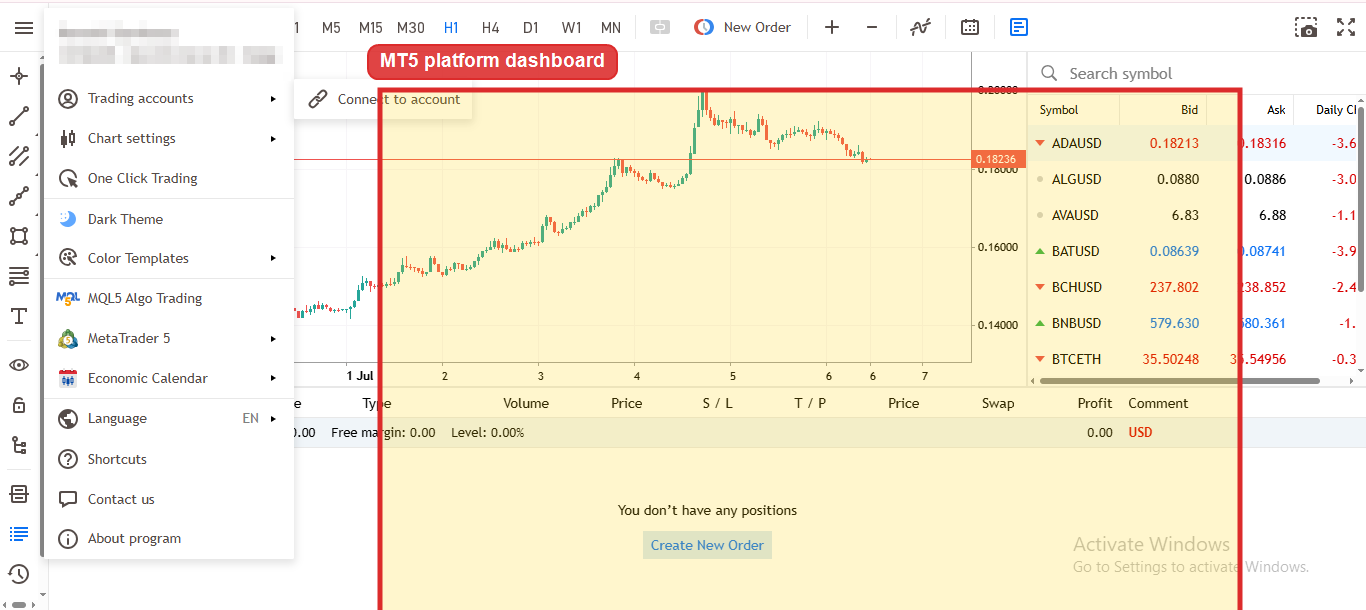
The example above is from the webtrader app. Click “Login” to connect. Once you’re in, you’ll see your account balance and trading dashboard.
Step 5: Set a Permanent Password (Optional but Recommended)
Upon setting up your MT5 you were given a temporary password, go to your MT5 account settings and change it to something permanent and secure. This will keep your account protected going forward.
You’re Set Up
At this point your MT5 account on Deriv is now live and ready to go. You can fund your account and start exploring the platform to get yourself accustomed to it. In another guide we will cover how to deposit money into your Deriv account.
Beyond trading, there are other ways to make extra income from Deriv. One of these ways is through the Deriv Partner Program. You can register in quick and easy steps to become part of this fast growing community.
FAQ: Logging into MT5 on Deriv

Do I need to download MT5, or can I use it in my browser? Both options work. You can download the desktop or mobile app, or use MT5 WebTrader directly in your browser without installing anything.
What if I forget my MT5 password? You can reset it from within your Deriv account under the MT5 section of Trader’s Hub, without needing to contact support.
Can I have more than one MT5 account on Deriv? Yes, Deriv allows multiple MT5 accounts, such as different account types or currencies, all manageable from the home section of your dashboard.