cTrader’s layout front-loads information that other platforms bury in submenus. Things like order book depth, spread data, execution speed metrics, are all visible without digging. That density is the appeal for traders who want it, and the barrier for traders who don’t. Here’s how to navigate the core workspace and get your first order placed. Before placing your first trade, it helps to understand how the platform handles markets, orders, positions, and deals. The official cTrader Help Centre provides a useful overview of these core trading features and how they work together.
If you have not created a Deriv account yet you can proceed to create on here.

Step 1: Create Your cTrader Account
From the Deriv dashboard you can add a new account in the CFDs section. Find cTrader and click there and follow the prompts. Choose whichever account type suits your trading plans.

Step 2: Download or Launch cTrader
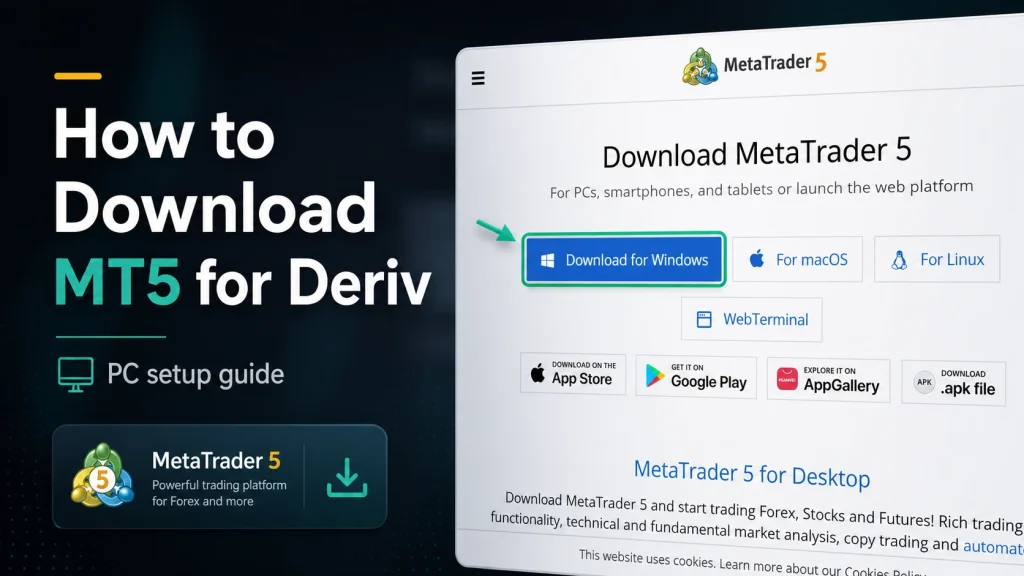
Choose to download the desktop or mobile app, or launch cTrader directly through the web version without installing anything.

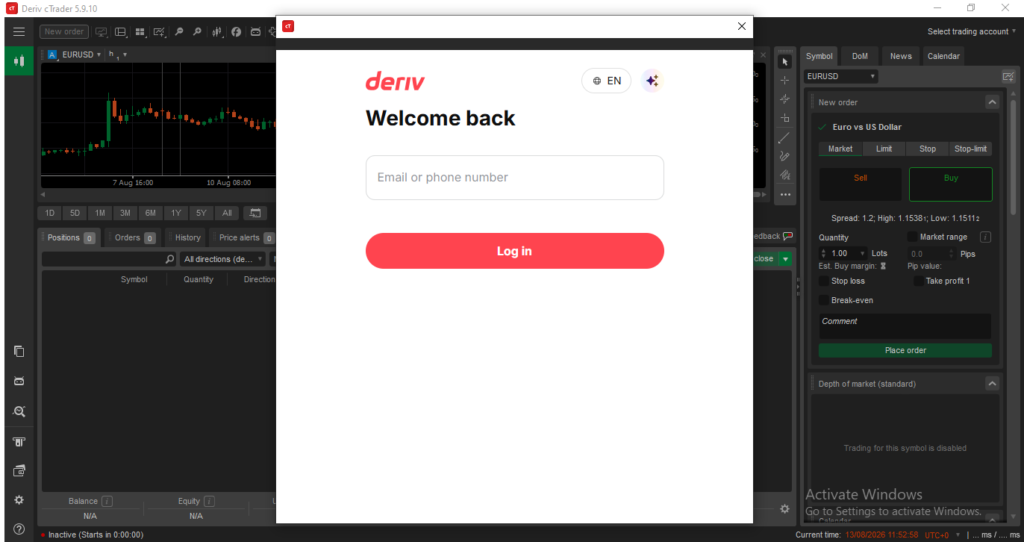
Step 3: Log In With Your Account Details
Enter your Deriv email address and password and your cTrader will take you directly to your account(s). From there you can switch between accounts by clicking in the right corner using the cTrader credentials as seen in the above image on step 2.
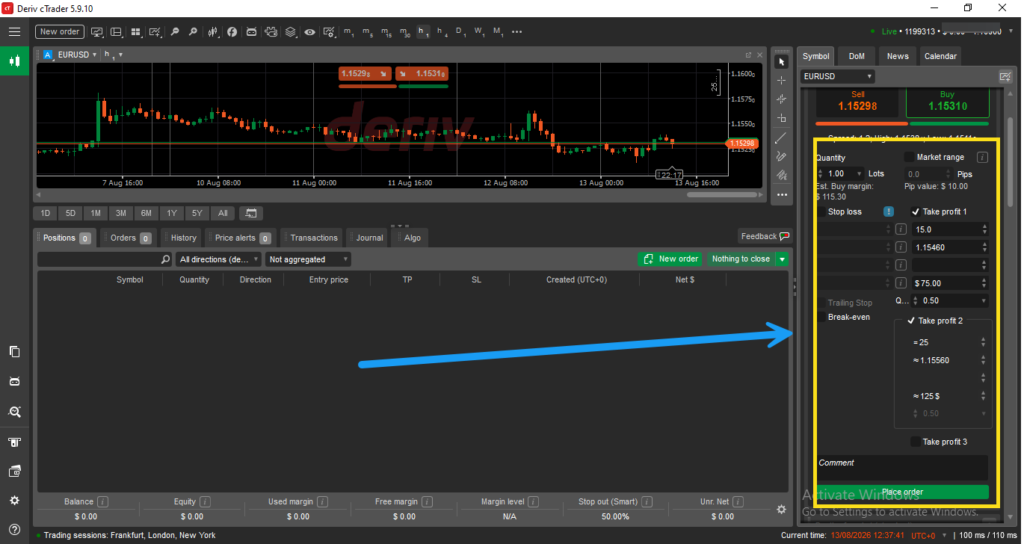
Step 4: Select a Market and Place a Trade
Use the market selector to choose an asset, then set your trade parameters, such as volume and stop loss, before confirming.
Step 5: Explore the Copy Trading Section
If you’re interested in copy trading, navigate to that specific section within cTrader to browse strategy providers you can follow.

Step 6: Monitor Your Positions and Copied Trades
Track both your own manually placed trades and anything you’re copying from another trader, all visible within the same positions panel.
Settling Into the Platform
Between placing your own trades and exploring copy trading, cTrader offers two fairly different ways to engage with the same markets. For a fuller look at how it compares to MT5, our guide on What Is Deriv cTrader? breaks down the differences in more depth.
Following someone else’s trading strategy is one way to stay involved with Deriv passively, but there’s also a completely different passive option built around referring new users to the platform. It’s explained here.

FAQ: Using Deriv cTrader
Do I need a separate account for copy trading on cTrader? No, copy trading is accessible from the same cTrader account you use for manual trading.
Can I stop copying a strategy provider at any time? Yes, you can unfollow or stop copying a provider whenever you choose, from within the copy trading section.
Is cTrader available without downloading anything? Yes, the web version runs directly in your browser without needing an installation.
Can I use cTrader on mobile? Yes, cTrader has a dedicated mobile app available for both iOS and Android.