Deriv recently rolled out an updated dashboard, and if you’re used to the previous layout, it’s worth taking a few minutes to get familiar with what’s changed. From a refreshed Trader’s Hub experience to reorganized account and wallet views, the new dashboard is designed to make navigating your trading activity faster and more intuitive. In this guide, we’ll take you on a complete tour of the new Deriv dashboard, walking through every key section so you know exactly where to find what you need. Modern dashboards are designed to bring your most important information together in one place, making it easier to monitor your account and access key features. Nielsen Norman Group explains that an effective dashboard should present essential information at a glance, helping users complete tasks more efficiently.
If you are totally new to Deriv you can create an account here. You can also follow our article How to create a Deriv account.
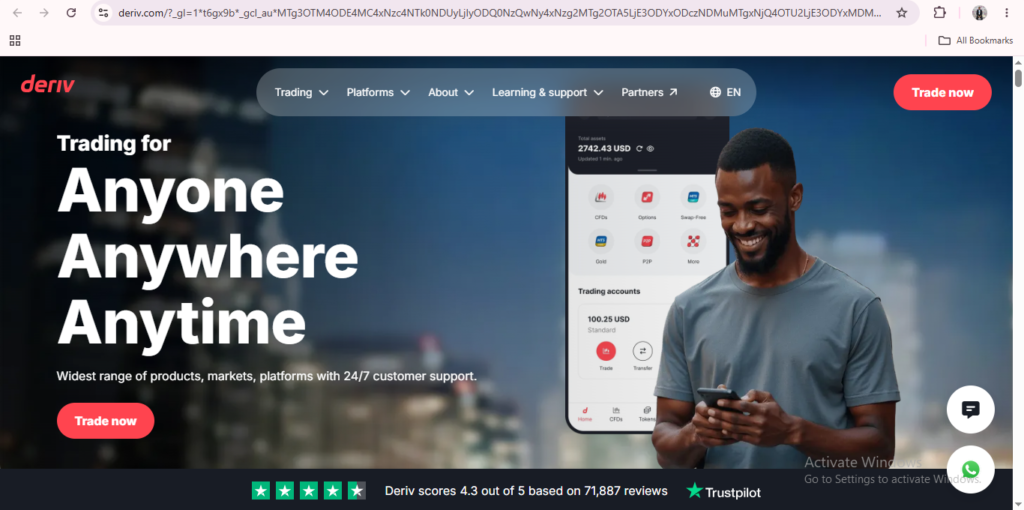
Home
Previously upon logging in you would land on the Deriv Trader’s Hub. In the new dashboard design, you have “home” at the top of the list on the left panel. Listing navigation of the left panel is a great user experience designed to make your navigation much easier than before. In the home section you can see all the trading accounts you have. You can go to your desired account by simply clicking on it. Right underneath you find “explore deriv” which takes you to the other functions like depositing methods and more trading account types both real and demo. For a closer look at getting your first account set up here, see How to Create a Deriv Account Step-by-Step.
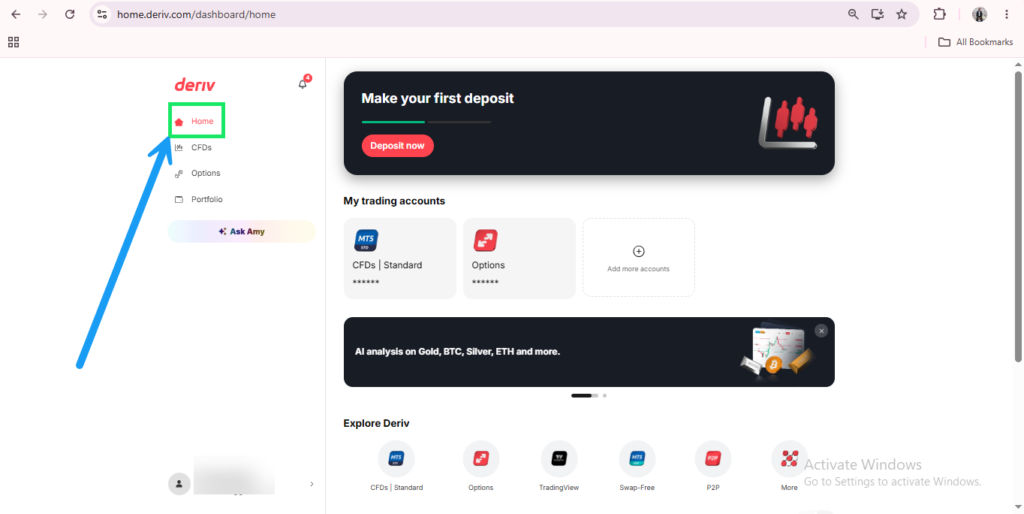
CFDs
The CFDs gives you an overview of your trading accounts including their balances. You can switch the toggle between real and demo to see the different accounts grouped separately. The total balance in the trading accounts is displayed and labelled “total trading volume” for real and demo accounts respectively. Our guide on How to Deposit Money into Deriv breaks down the depositing process step by step if you’re doing it for the first time.
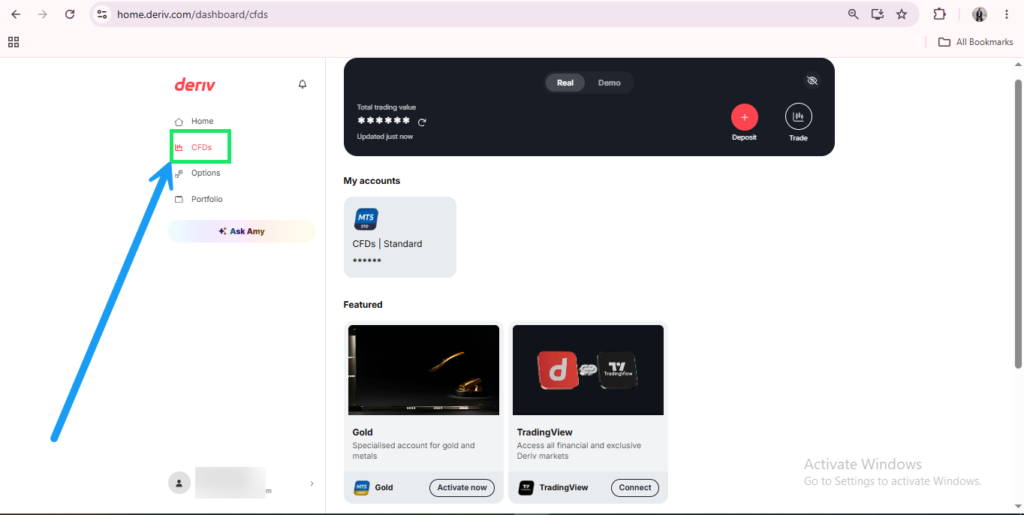
Options
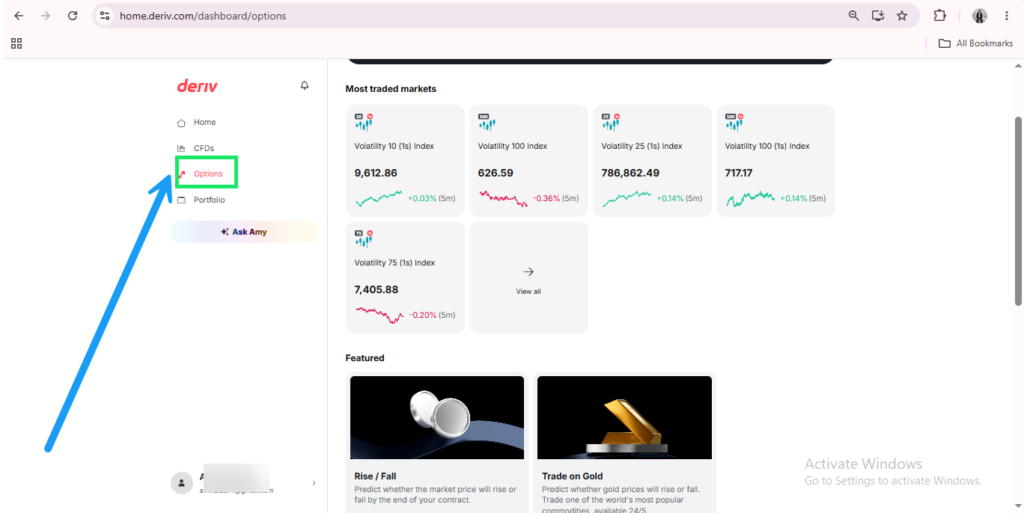
Next right after CFDs you have “Options”. This is a shortcut to the market watch where you will be able to see all the market prices for the different instruments available on Deriv. Simply click “view all” to see all the instruments available in the market watch section of Deriv. Within the same section you have access to the different Deriv Trading platforms namely Deriv Trader, Deriv Bot and Smart Trader.
Portfolio
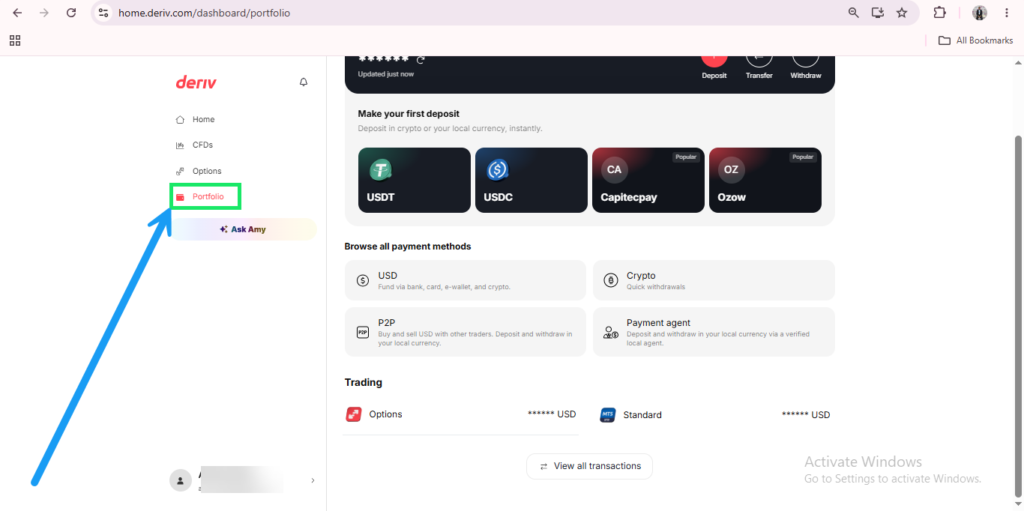
In the portfolio section you get access to all the payment methods that Deriv offers to deposit funds into your Deriv wallet and from wallet to trading account. This includes crypto, payment agents, peer to peer, card (visa and mastercard) and bank transfers.
About You
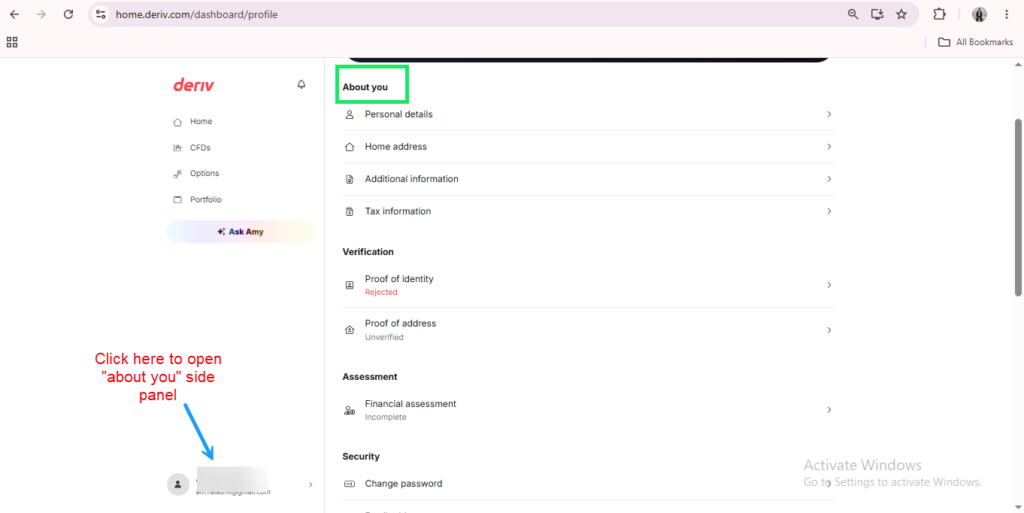
Your profile icon opens the “about you” panel where you can see your personal details, security settings, and preferences like language. This is also where you’d go for tasks like How to Enable Two-Factor Authentication on Deriv.

A Dashboard Built Around a Few Core Habits
Once you know the main dashboard areas and what they do, the rest of the platform becomes far easier to navigate on your own.
If you’re new to trading platforms generally and want a broader introduction alongside this tour, this guide from The Forex Affiliate is worth reading as a companion piece for new traders.
And that’s really the full walkthrough. Every panel, tab, and setting laid out so nothing on that dashboard feels unfamiliar the next time you log in. If you’ve been following along and thinking about the business side of things rather than just the trading side, this is worth sitting with for a second: a platform this clean and well laid-out is easier to talk about, easier to recommend, and easier to convert when you’re the one sending people to it. That’s the whole appeal of Deriv’s affiliate program. You’re promoting something you can actually walk someone through with confidence, not just a link you’re hoping performs. And if you’re still figuring out the mechanics of turning recommendations like that into real income, Wealthy Affiliate is a genuinely useful place to start learning that side of the game.
FAQ: Touring the New Deriv Dashboard
Is Trader’s Hub the same as the old Deriv dashboard? Trader’s Hub replaced the older layout and now serves as the main entry point for all trading accounts and platforms.
Do all users see the same sections on the dashboard? Mostly yes, though available trading platforms and payment methods can vary slightly by region.
Can I access MT5 directly from the dashboard? Yes, MT5 accounts are listed and managed from Trader’s Hub, with login details accessible from there.
Where do I go if I want to change my account currency setup? Currency is set per Wallet, so check your Wallets section rather than a single account-wide setting.