Deriv’s integration with TradingView isn’t just about better charts inside Deriv’s own platforms, it also works the other way, letting you connect your Deriv account directly to TradingView.com and trade from there instead. According to TradingView’s own announcement of the partnership, this brings Deriv’s proprietary synthetic markets into TradingView’s interface for the first time. Here’s exactly how to set that connection up.
To go through this entire process smoothly, make sure you have a Deriv account and if not create one here.
Step 1: Go to TradingView and Find the Broker Panel
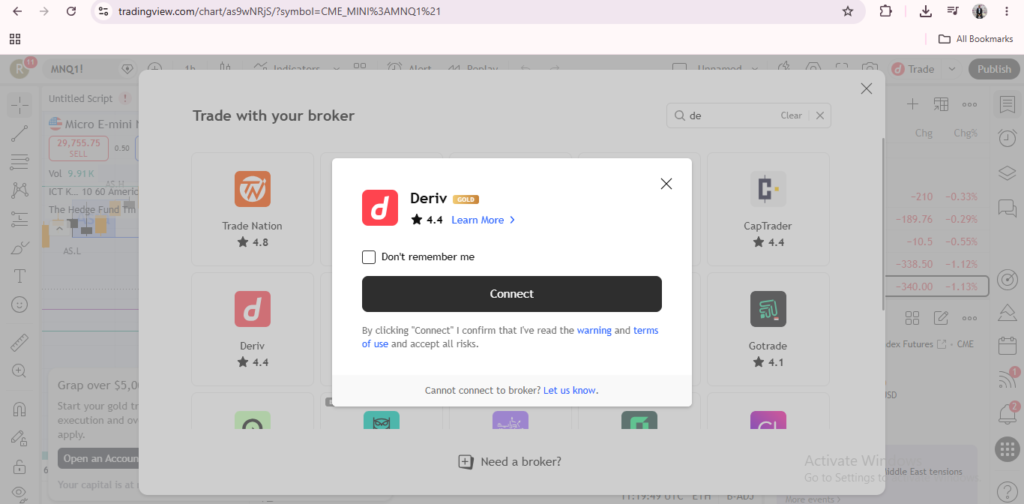
On TradingView.com, open the trading panel, usually found at the top right corner of the chart, where you can browse available broker integrations. Simply click “connect another broker” and get a panel with brokers listed. This panel lists every broker TradingView has partnered with, and it’s worth noting that not every broker offers the same depth of integration. Some only support charting, while others, like Deriv, support full trade execution directly from the chart.

Step 2: Search for Deriv
Within the broker list, search for and select Deriv as your connection. If you already have a TradingView account with other brokers connected, Deriv simply appears as an additional entry in the same panel, rather than requiring you to reconfigure anything else you’ve already set up.

Step 3: Log In With Your Deriv Credentials
You’ll be prompted to log in using your existing Deriv account details, the same ones you use to access your Deriv dashboard. There’s no need to create a new Deriv account specifically for this. The connection works with whichever account you’re already trading on, whether that’s a demo or real account. If you are already logged in to your Deriv you can connect from your Deriv into TradingView.
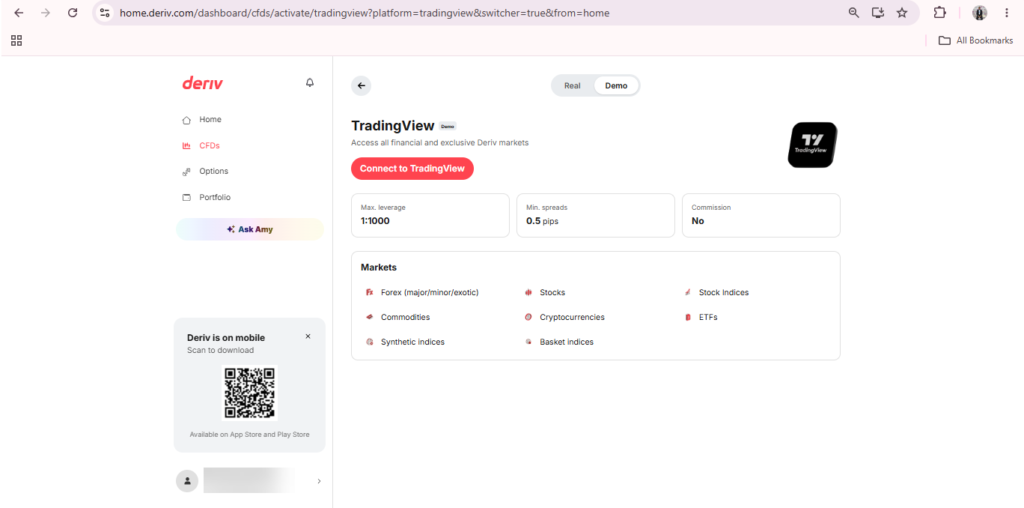

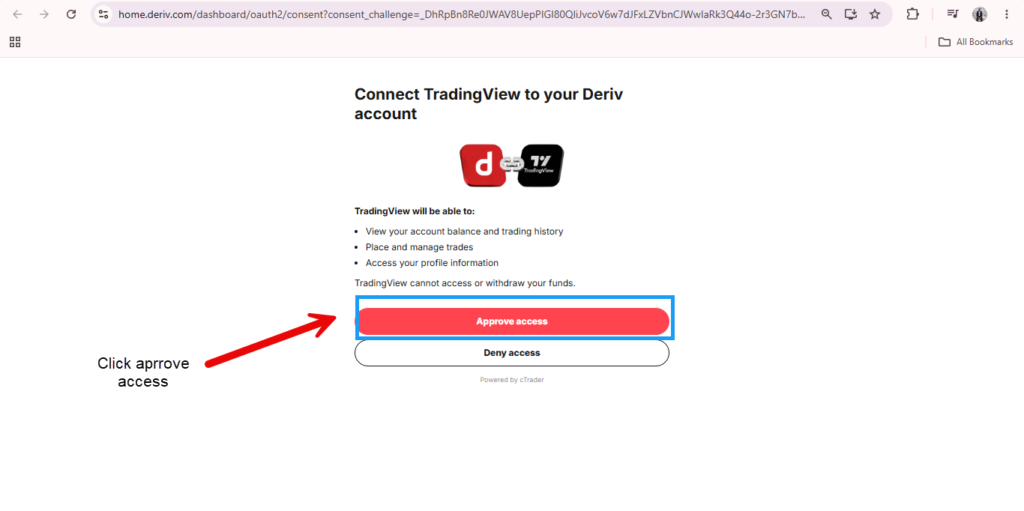
Step 4: Authorize the Connection
Confirm the permissions TradingView is requesting to link with your Deriv account, allowing it to place and manage trades on your behalf through the connection. This step is essentially granting TradingView the ability to send trade instructions to Deriv, while Deriv continues to handle the actual execution, pricing, and account balance behind the scenes. TradingView never takes custody of your funds.
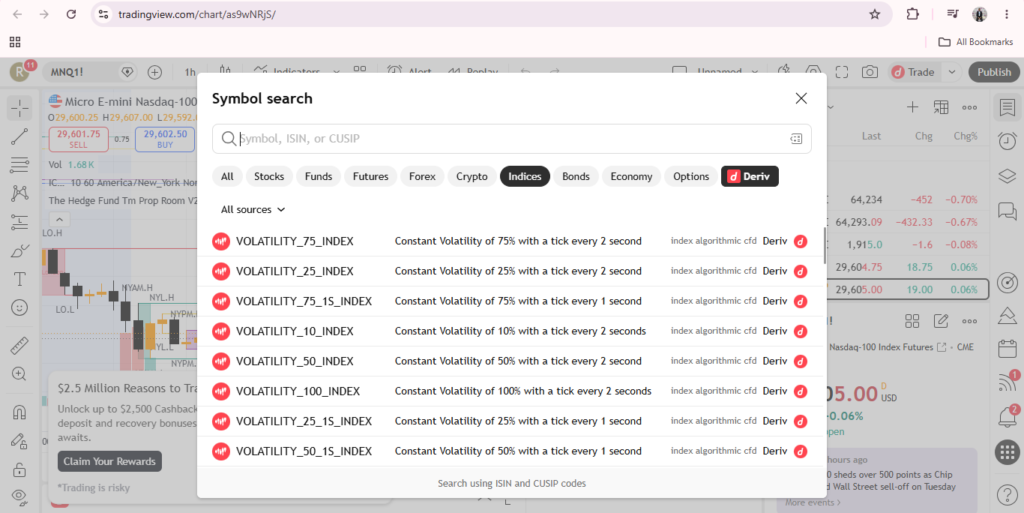
Step 5: Select a Deriv Market
Once connected, search for one of Deriv’s markets within TradingView, including its exclusive synthetic indices like Volatility or Boom/Crash, which aren’t available through most other brokers on the platform. This is arguably the main draw of the integration for existing TradingView users, access to markets that are otherwise unique to Deriv, viewable and tradeable from the same interface they already use for everything else.
Step 6: Place and Manage Trades From TradingView
From here, you can place trades directly from TradingView’s chart, with execution, pricing, and account management still handled by Deriv behind the scenes. Your open positions, order history, and balance all remain consistent with what you’d see logging into Deriv directly. The TradingView connection doesn’t create a separate, parallel account, it’s simply an alternate way of interacting with the same one. Our guide on What Is TradingView on Deriv? covers how this connects to Deriv’s other integration, the charts embedded within Deriv X, if you’re weighing which approach suits you better.
Setting up a connection like this takes a few minutes, but there’s also a much simpler way to benefit from Deriv that doesn’t involve linking any accounts at all. You just refer people to the platform. Worth a look here if that’s new to you.