While two-factor authentication (2FA) adds an extra layer of security to your Deriv account, there may be times when you need to turn it off whether you’re switching devices, troubleshooting access issues, or simply prefer a different security setup. Disabling 2FA on Deriv is a quick process, though it’s worth understanding the trade-offs before you do. In this guide, we’ll walk you through exactly how to disable two-factor authentication on Deriv, step by step. The Cybersecurity & Infrastructure Security Agency has more resources that will teach you how to keep your account secure.
If you still need a Deriv account, create a Deriv account first.
If you want a broader security walkthrough, see How to Secure Your Deriv Account From Unauthorized Access.
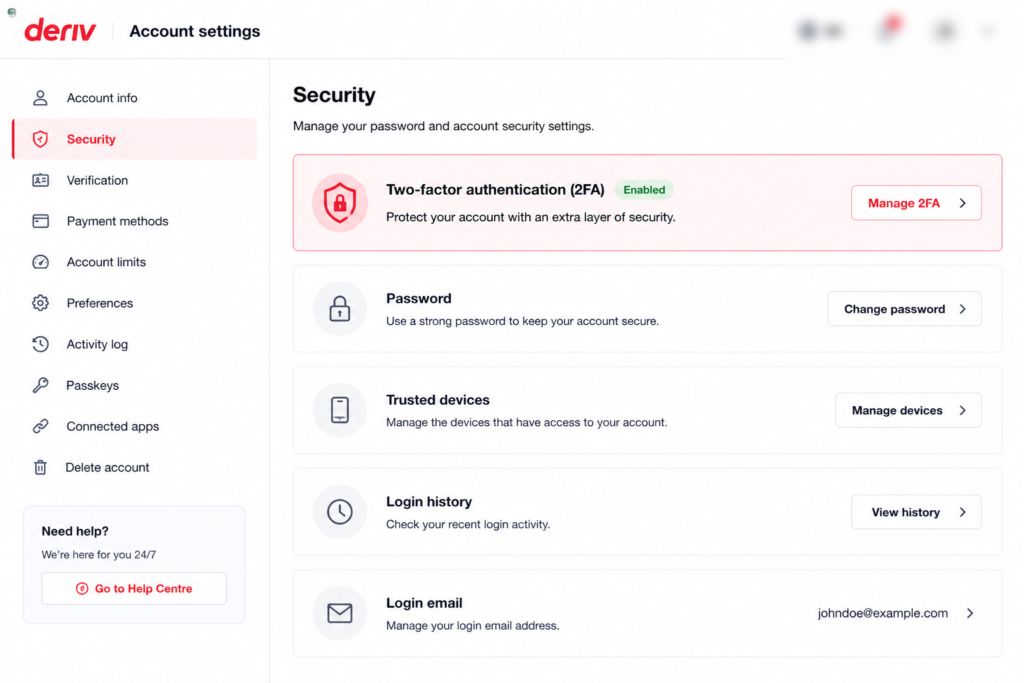
Step 1: Go to Account Settings
Log into your Deriv account and click on your profile icon in the top right corner, then select “Account Settings”.
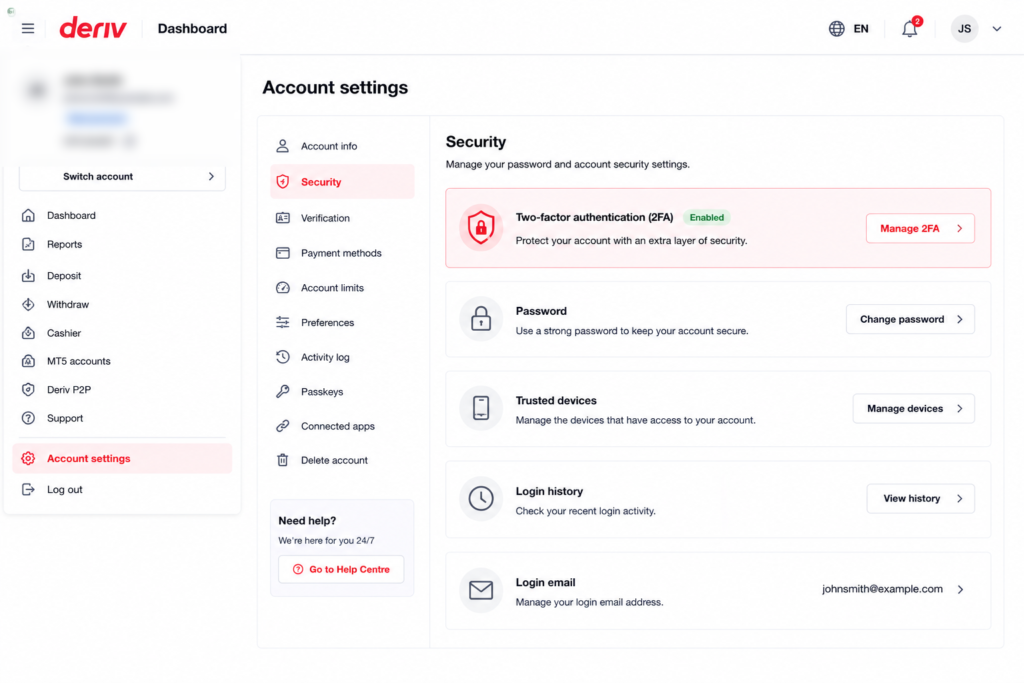
Step 2: Open the Security Section
Inside Account Settings, go to the “Security” or “Two-Factor Authentication” tab, where your current 2FA status is displayed.
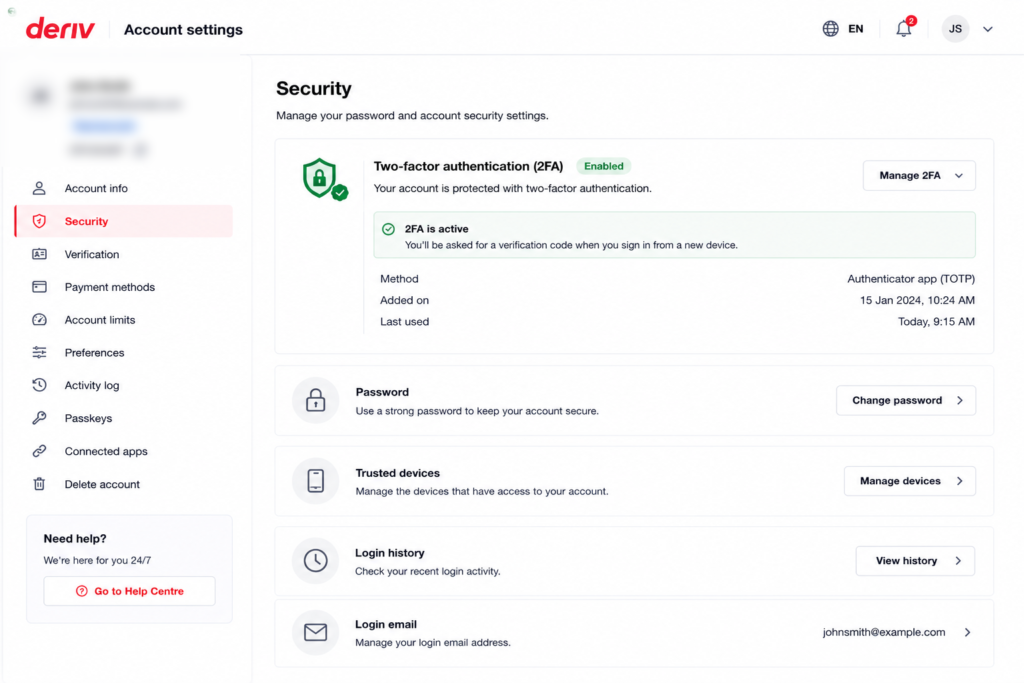
Step 3: Enter a Current Authentication Code
Before you can disable 2FA, Deriv will typically ask you to enter a current code from your authenticator app, confirming the request is coming from you and not someone else with access to your password alone. If you’re still new to navigating Deriv’s account settings generally, this guide from The Forex Affiliate is a useful reference for new traders.
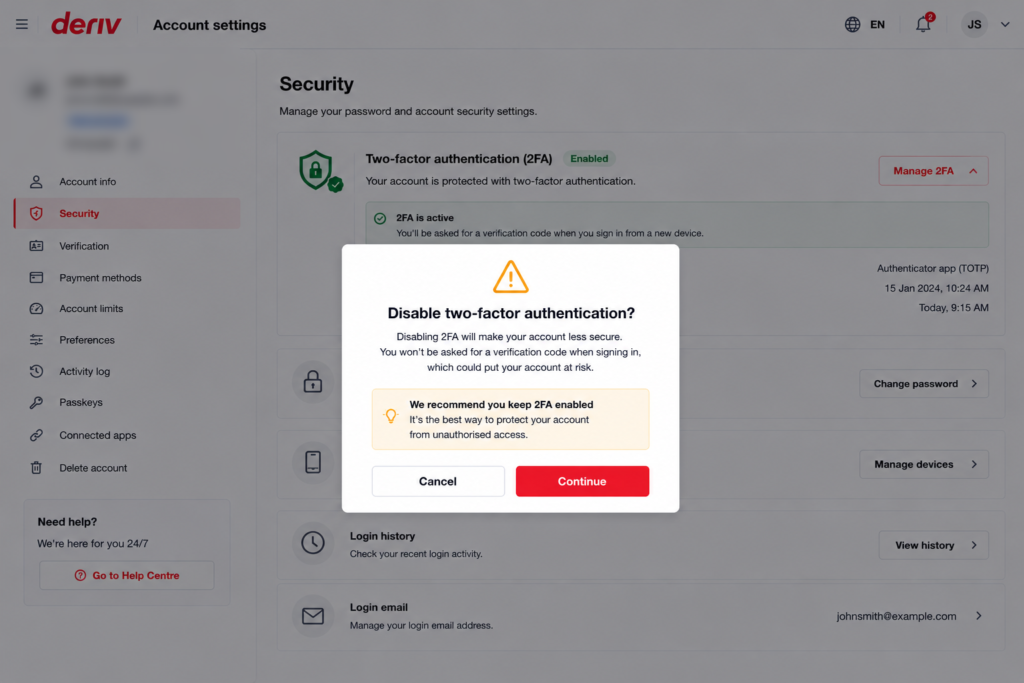
Step 4: Confirm You Want to Disable 2FA
Click “Disable” and confirm the action if prompted. Deriv may show a warning explaining that your account will rely on your password alone going forward.
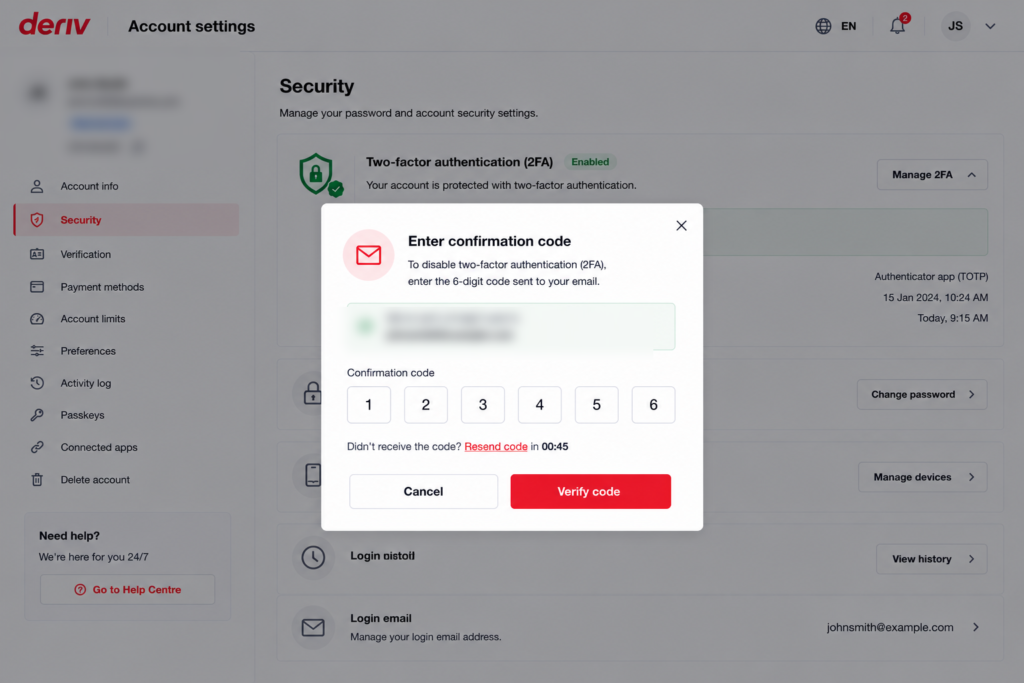
Step 5: Use Backup Codes If You’ve Lost Authenticator Access
If you no longer have access to your authenticator app and don’t have a current code, use one of the backup codes provided when you first set up 2FA instead.
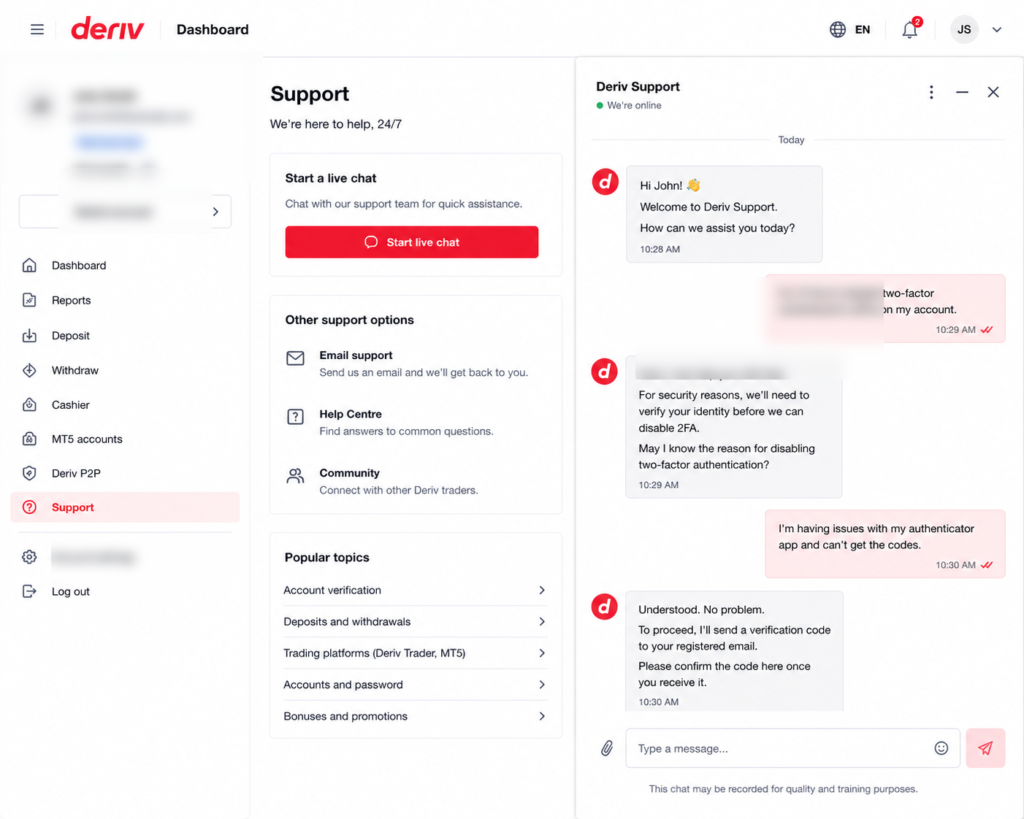
Step 6: Contact Support If You’re Locked Out
If you don’t have a current code or backup codes, you’ll need to contact Deriv support directly. They’ll guide you through identity verification to disable 2FA on your behalf.
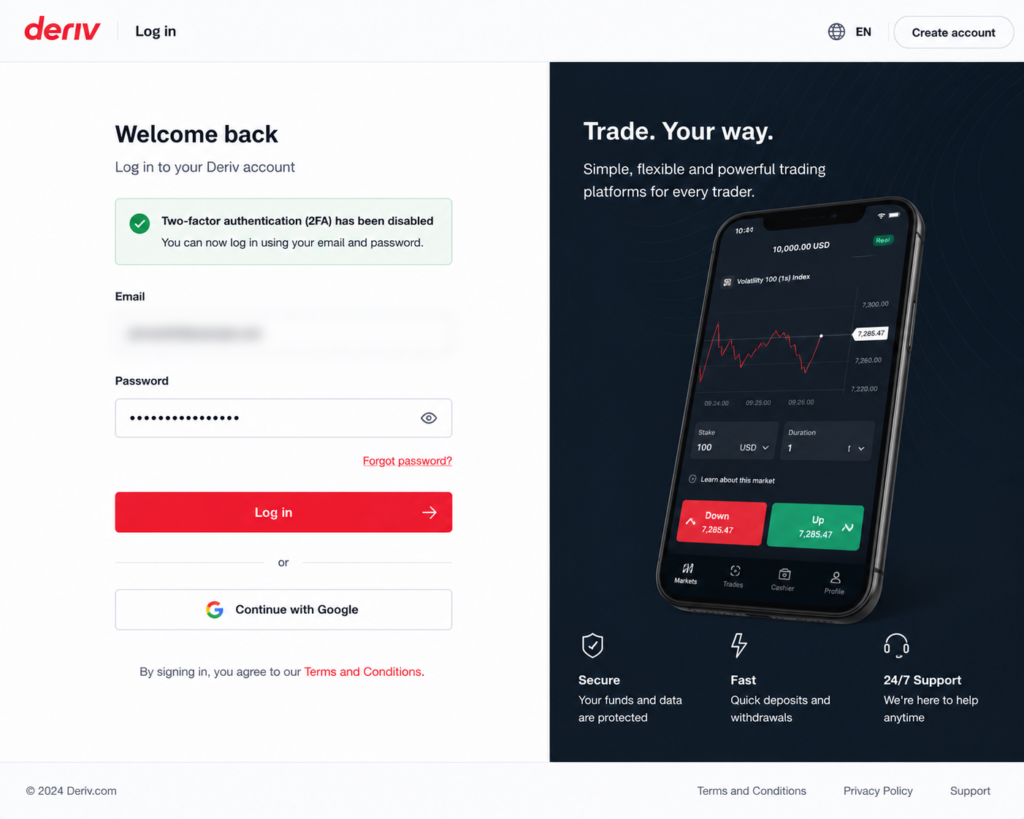
Step 7: Confirm 2FA Is Disabled
Once complete, check Account Settings to confirm two-factor authentication now shows as disabled. From this point, logging in only requires your password.
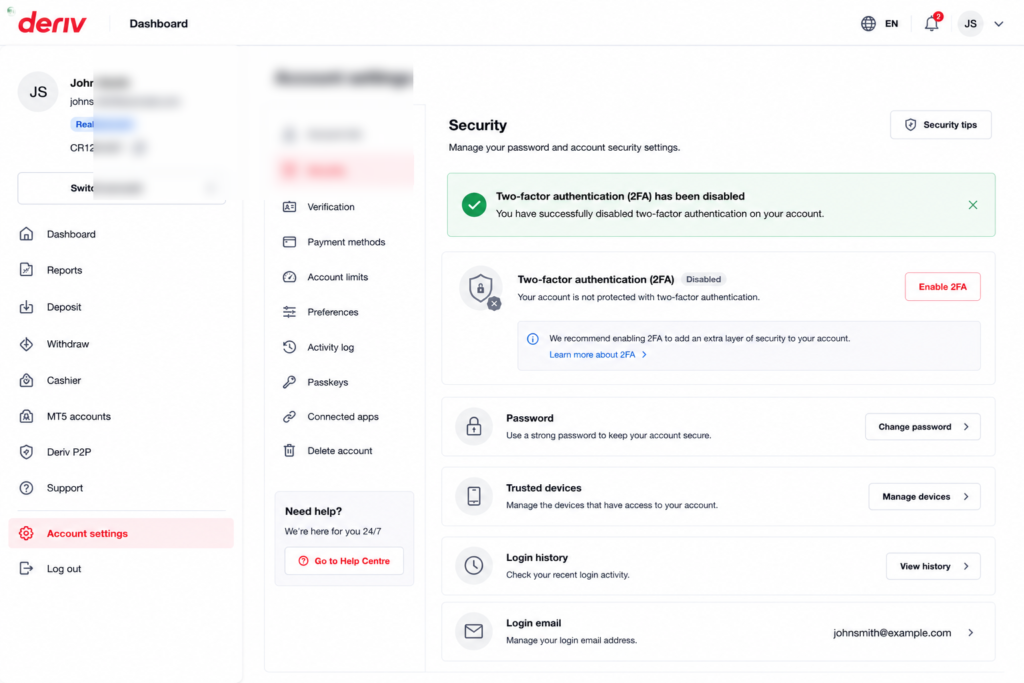
2FA Disabled
That’s how to turn off two-factor authentication on Deriv, whether you have a current code, backup codes, or need support’s help. If you’re disabling it simply to switch authenticator apps or phones, remember you can always re-enable it afterward. Just in case you need a reminder to set your 2FA back on you can check our article How to enable two factor authentication.
Looking Beyond Account Security
Once your account is set up the way you want it, some users start looking at Deriv from a different angle which is earning by referring others to the platform rather than trading themselves. Deriv’s Partners program is designed for exactly this.
For those interested in building a broader online income through affiliate marketing more generally, Wealthy Affiliate is designed to teach beginners the fundamentals of building an affiliate marketing business from scratch.

FAQ: Disabling Two-Factor Authentication on Deriv
Do I need my authenticator app to disable 2FA on Deriv? Usually yes, you’ll need a current code from the app or one of your saved backup codes. Without either, you’ll need to go through support.
Is it safe to disable two-factor authentication? Disabling 2FA does reduce your account’s security, relying on your password alone, so it’s worth weighing that against your reason for turning it off.
Can I re-enable 2FA after disabling it? Yes, you can set it up again at any time from the same Security section in Account Settings.
What if I lose both my authenticator app and backup codes? Contact Deriv support directly. They can verify your identity through other means and assist with removing 2FA from your account.