The interface is simpler than it looks the first time you open it: pick a market, pick a trade type, set your stake, and the platform handles the rest. What trips people up isn’t the mechanics, it is the trade type selector, since each one (multipliers, accumulators, rise/fall) changes what parameters actually show up on screen. Here’s a walkthrough of the layout and how to place your first trade without second-guessing every button. Deriv Trader is designed to give traders access to options and other contract types through a straightforward web-based interface. You can learn more about the platform and its available features on Deriv’s official Deriv Trader page.
Before you can proceed further you will need to create a Deriv account here.
Step 1: Open Deriv Trader From The Dashboard
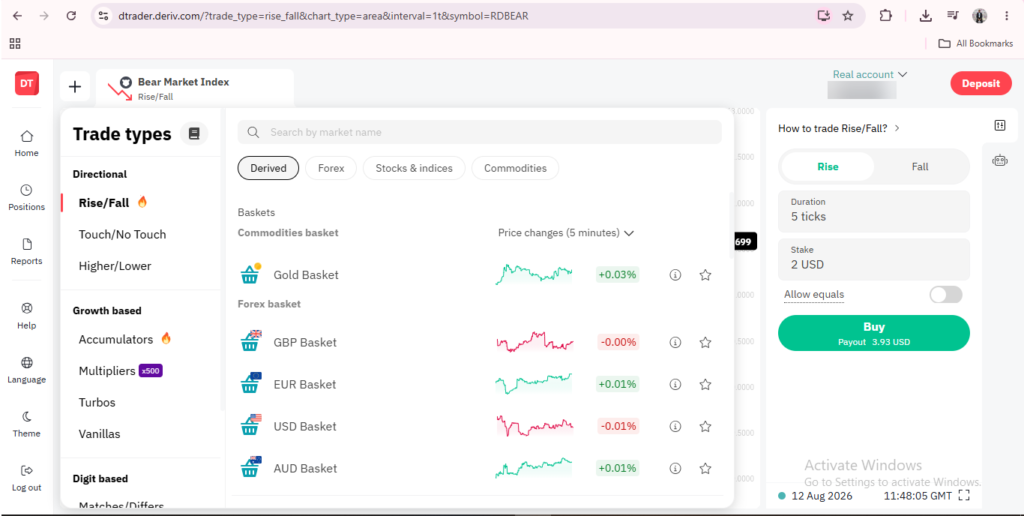
Log into Deriv, go to the dashboard and click “Options”. You will find the different Deriv platforms. Proceed to select “Deriv Trader”. You will be redirected to a screen with the trading platform, markets and trading types.

Step 2: Select a Market
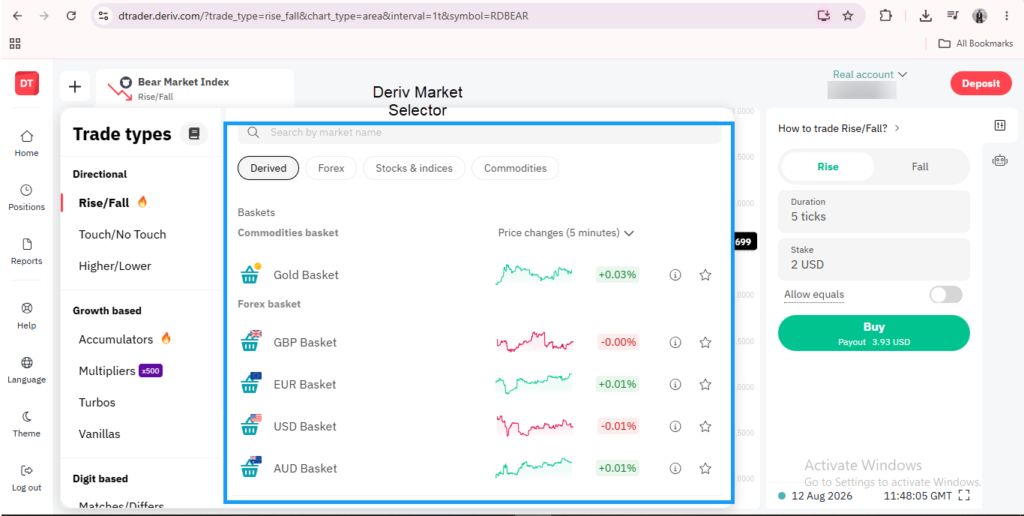
In the top left of the platform, click the market selector to browse or search for whichever market you want to view.
Step 3: Choose a Trade Type
Below or beside the chart, select which trade type you want to use — Options, Multipliers, Accumulators, Vanilla Options, or Turbo Options.


Step 4: Set Your Trade Parameters
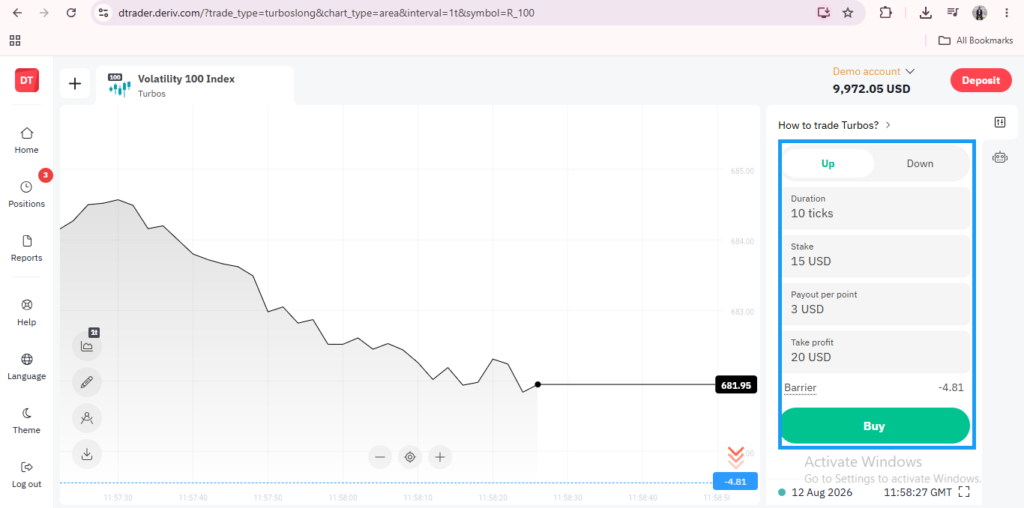
Depending on the trade type, fill in the relevant fields, such as stake, duration, barrier, or multiplier, all shown directly on the trade panel.
Step 5: Review Before Confirming
Check the summary shown, including potential payout or maximum loss, before clicking to place the trade.
Step 6: Monitor Open Positions
Once placed, your trade appears in the open positions panel, where you can track it and close it manually if the trade type allows.


Getting Comfortable With the Layout
The layout stays consistent regardless of which trade type or market you’re using, so once you’ve placed one trade, the rest of the platform becomes familiar quickly. For a deeper look at what each trade type actually does, our guide on What Are Trade Types on Deriv? covers them individually, and What Is Deriv Trader? explains the platform itself in more depth.
Getting familiar with the trade panel is one part of Deriv, but there’s also a way to earn from the platform that skips trading entirely. It’s covered here, worth a look regardless of how you use Deriv Trader. For extra tools and support in your new journey come here.
FAQ: Using Deriv Trader
Can I switch trade types without leaving the platform? Yes, the trade type selector lets you switch freely without needing to reload or navigate elsewhere.
Do I need to fund my account before exploring Deriv Trader? No, you can explore the interface and even place trades on a demo account without funding a real one.
Where do I check my past trades on Deriv Trader? A trade history or statement section is typically available within the platform, separate from your open positions.
Can I use Deriv Trader on mobile? Yes, it’s accessible through a mobile browser and also within the Deriv GO app.