How to View Your Wallet Balance on Deriv

Your wallet balance is the number that matters most before you place a trade, make a withdrawal, or move funds around and Deriv shows it in more than one place, which trips up a lot of newer users. Depending on whether you’re checking from Trader’s Hub, a specific wallet screen, or mid-transfer, the figure you see can reflect slightly different things: available balance versus funds tied up in an open position, for instance. Here’s exactly where to look and what each number actually tells you. Although the Deriv Wallet has its own interface, the general principles behind wallet balances are similar across many platforms. Blockchain.com’s beginner guide to crypto wallets offers a helpful explanation for first-time users.

If you are a first timer you can also create a Deriv account here.
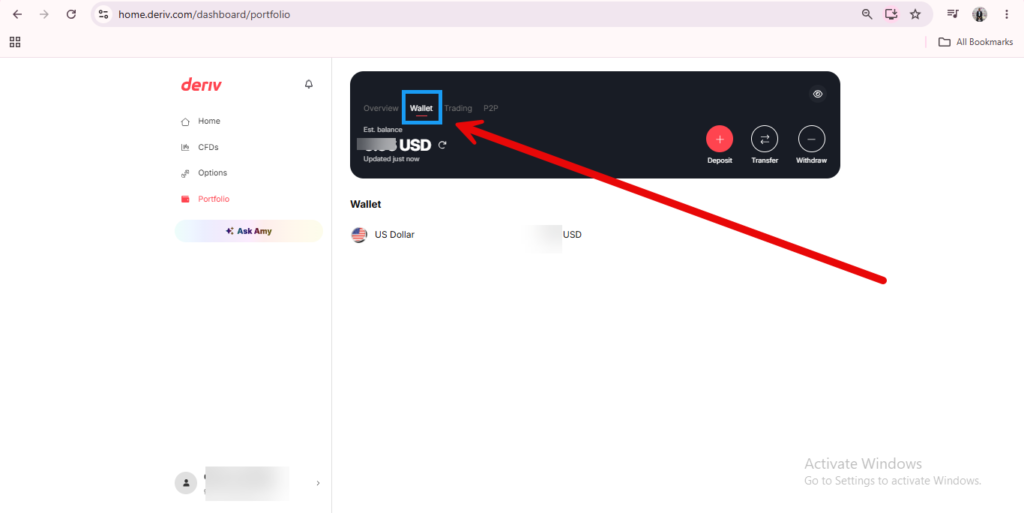
A red arrow points to the “Wallet” tab on a portfolio dashboard screen of the Deriv website, highlighting where to view Deriv Wallet details and check Deriv balance. The page shows options for Deposit, Transfer, and Withdraw.

The Quick Glance: Top of the Dashboard

Most pages on Deriv show a small balance figure near the top of the screen, usually next to the wallet icon, giving you a running total without needing to click into anything.
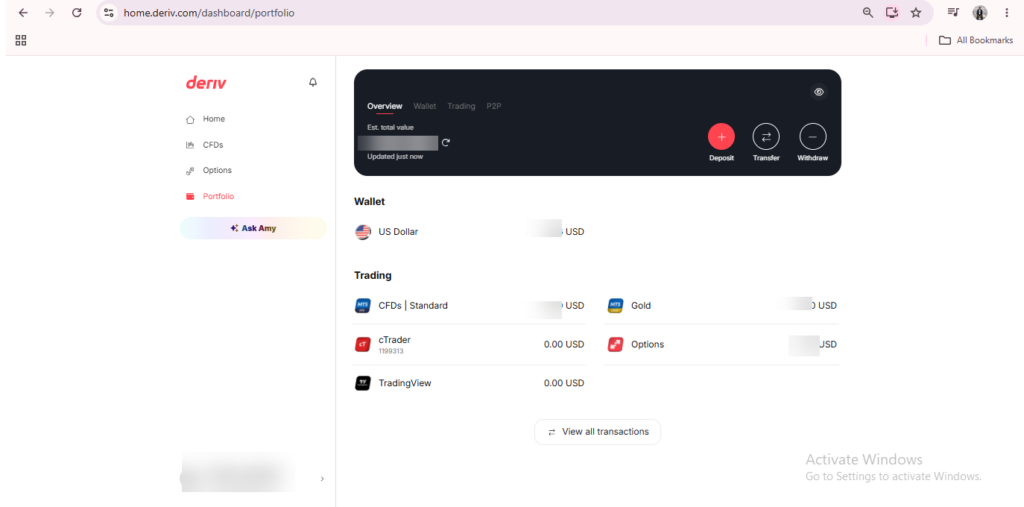
Screenshot of a Deriv balance dashboard displaying wallet balances in USD, along with trading options for CFDs, cTrader, and TradingView. At the top, there are buttons to deposit, transfer, or withdraw funds. On the left side, the sidebar menu is visible, making it easy to view your Deriv Wallet and navigate between features.

The Full Breakdown: Your Wallets Overview

Click the wallet icon to open your Wallets overview, where each individual Wallet, whether fiat or crypto, is listed with its own separate balance. If you have not yet used any of your crypto wallets they appear as destination wallets when you select the transfer option.
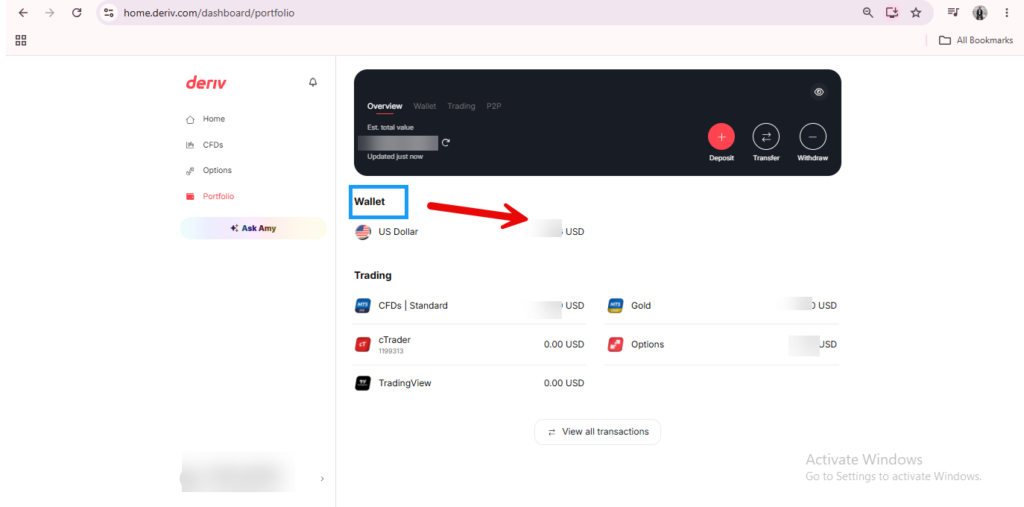
Screenshot of a user’s dashboard on Deriv, showing the Deriv Wallet balance in US dollars with a blue arrow pointing to “Wallet.” You can also check Deriv balance details for CFDs, cTrader, and TradingView, which are visible on the screen.

Per-Trading-Account Balances in Trader’s Hub

Each trading account card in the Portfolio or CFDs section, such as MT5, shows its own balance separately from your Wallet, since funds only reflect there once transferred in.
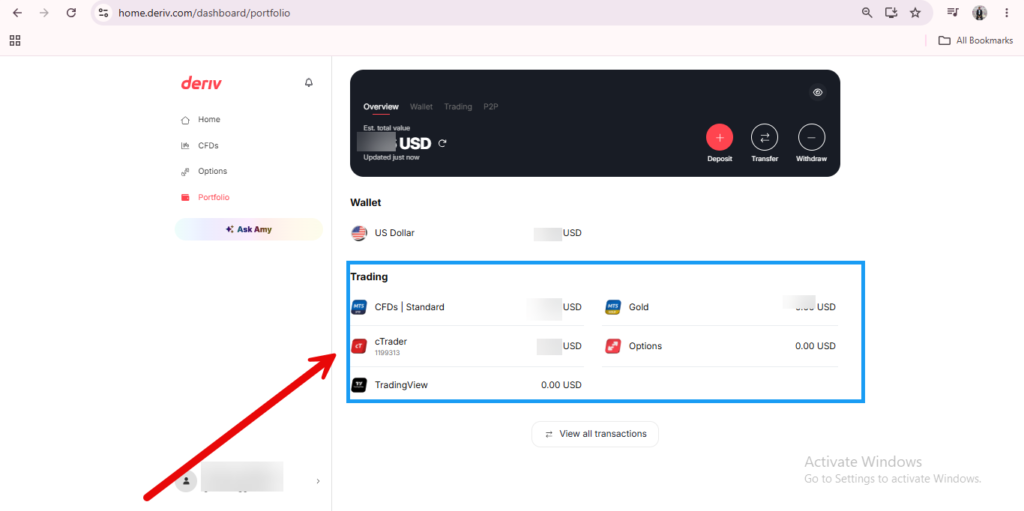

Screenshot of a trading dashboard on Deriv, showing the Deriv account balance location in USD, with trading options for CFDs, cTrader, and TradingView. A red arrow points to the Portfolio tab in the left sidebar, making it easy to check Deriv balance and view Deriv Wallet details.
Promotional graphic for Deriv forex trading showing a green upward candlestick chart with a rising arrow, currency symbols, and icons highlighting fast execution, tight spreads, security, and an "Open Account" button.
Promotional graphic for Deriv forex trading showing a green upward candlestick chart with a rising arrow, currency symbols, and icons highlighting fast execution, tight spreads, security, and an “Open Account” button.

Balance History in Your Statement

If you want to see how your balance has changed over time rather than just the current figure, check the Statement or Transaction History section within your Wallet.

Checking Balance on the Mobile App

The same balance figures are available on Deriv’s mobile app, typically shown at the top of the home screen and within the Wallet section.
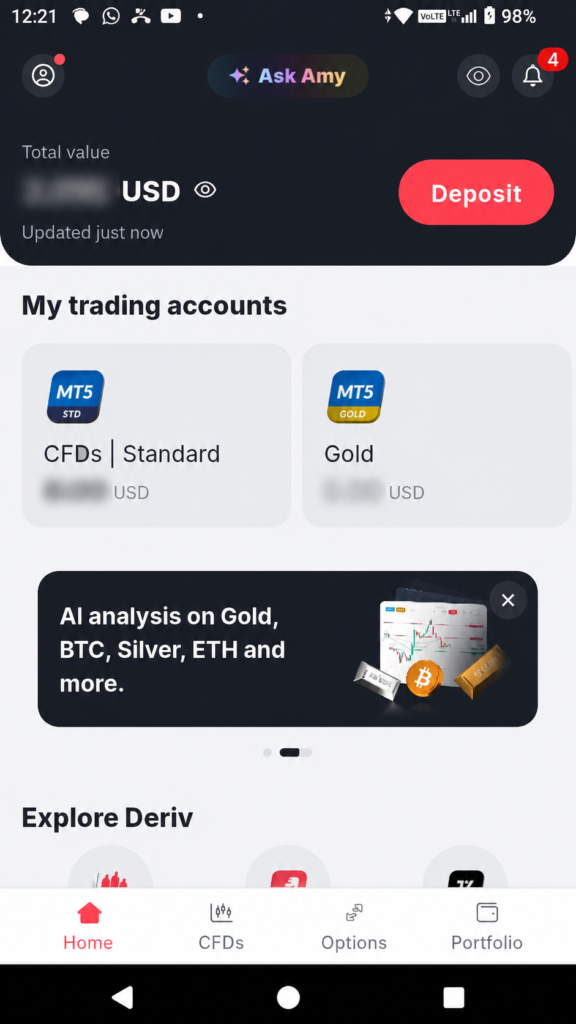
Mobile trading app dashboard displaying account types, total value in USD with an easily accessible Deriv account balance location, a “Deposit” button, AI analysis banner for Gold, BTC, Silver, and ETH, plus a navigation menu featuring Home, CFDs, Options, and Portfolio tabs—making it simple to check Deriv balance or view your Deriv Wallet balance at a glance.

Why Your Wallet and Trading Balances Differ

It’s worth remembering these aren’t the same number. Your Wallet balance is what’s available to transfer, while your trading account balance is what’s already been moved in and is ready to use for trading. If you’re not sure how to move funds between the two, our guide on How to Switch Between Wallets covers that.

Once you’re used to keeping an eye on your own balance, it’s worth knowing there’s a completely separate way to earn on Deriv that has nothing to do with trading at all. Curious traders usually start here. You can also check here for extra support and resources to make at a faster rate as a beginner.

A globe with a red upward arrow and bar graph. Text: “Support traders and earn commissions. Discover success in forex affiliate marketing—partner with a global trading platform.” Red button says “Explore Program.”.

FAQ: Viewing Your Wallet Balance on Deriv

Why does my Wallet balance differ from my MT5 balance? They’re separate by design. Your Wallet holds funds until you transfer them into a specific trading account like MT5.

Can I see my balance without logging in fully? No, balance information requires being logged into your account for security reasons.

Does my balance update immediately after a deposit? Card and e-wallet deposits usually reflect quickly, while bank transfers and some crypto deposits can take longer to update.

Where do I check historical balance changes rather than just the current total? The Statement or Transaction History section within your Wallet shows this over time.

Learn Affiliate Marketing and Earn Online

Leave a Comment

Your email address will not be published. Required fields are marked *

Learn Affiliate Marketing and Earn Online
Scroll to Top
