Logging into MT5 for the first time on a SyntX account and not seeing the instrument you expected is a common early snag. Here’s how to actually get the full SyntX instrument list visible and ready to trade. MT5 allows you to customise the instruments displayed in Market Watch by adding or hiding available symbols. The official MetaTrader 5 guide explains how to manage and add trading instruments to Market Watch

If you are still new to Weltrade and you would like to try the platform you can create an account here.
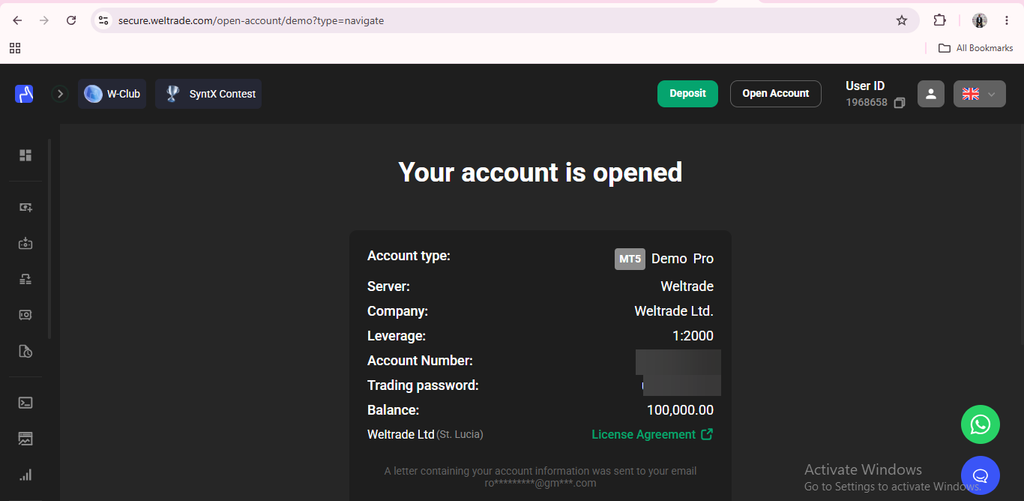
Step 1: Confirm You’re Logged Into a SyntX Account
The most common reason SyntX instruments don’t appear is being logged into the wrong account. Since Weltrade separates SyntX from its forex-focused account types, an MT5 session connected to a Pro or Premium account simply won’t show synthetic instruments at all. You need to be logged into your specific SyntX account number.
Step 2: Open Market Watch
Once you’re confirmed on the correct account, open the Market Watch panel from the View menu (or press Ctrl+M if it’s hidden). This panel lists every instrument currently visible in your workspace, and by default it may only show a partial list. Our guide on Why Are Weltrade SyntX Symbols Missing on MT5 covers the less common causes worth ruling out.
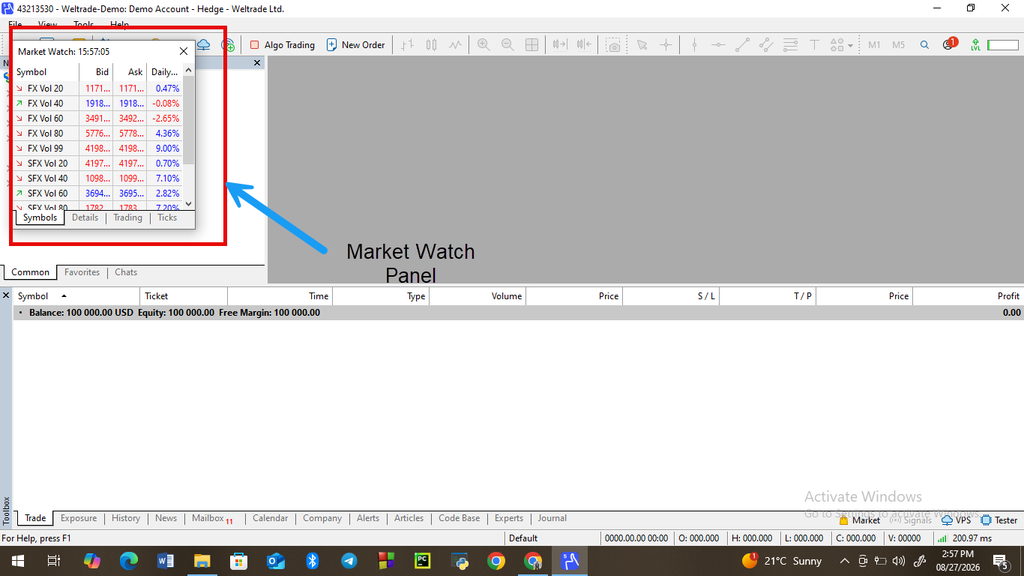
Step 3: Right-Click and Select “Show All”
Right-click anywhere inside the Market Watch panel and choose “Show All” from the context menu. This reveals the complete instrument list available to your account, including every SyntX instrument family, rather than just the small default selection MT5 displays initially. For more on getting MT5 fully set up from scratch, see How to Connect Weltrade to MT5.

Step 4: Use the Symbols Window for More Control
If you want more granular control, adding specific instruments without cluttering your workspace with every symbol, open the Symbols window (Ctrl+U), locate the SyntX category, and manually check the specific instruments you want visible in Market Watch.

Adding an Instrument to a Chart
Once an instrument appears in Market Watch, drag it directly onto an open chart window, or right-click the symbol and select “Chart Window” to open it in a new tab. From there, it behaves like any other MT5 chart with full access to timeframes, indicators, and drawing tools.

Organizing a Large Instrument List
Because SyntX includes several instrument families, Market Watch can get visually crowded once everything is showing. Right-clicking and using “Sets” or manually removing instruments you’re not actively watching helps keep your workspace focused on what you’re actually trading, rather than scrolling past dozens of symbols you don’t use. Saving a custom Market Watch set for each trading session type. One for volatility-style instruments, another for crash/boom-style ones. This can save time if you regularly switch between different instrument families depending on your mood or strategy for the day.

If Instruments Still Aren’t Showing
If you’ve followed these steps and specific SyntX symbols are still missing, it’s worth checking whether there’s a broader account or platform issue rather than a display setting.
Ready to get your SyntX instruments visible and ready to trade? Log in to your Weltrade SyntX account and open MT5 to follow along.