Staying on top of your trading activity means never missing an important update. It can be anything from a deposit confirmation or a P2P trade alert to a security notice about your account. Deriv’s notification system keeps you informed in real time, but knowing exactly where to find and manage these alerts can save you from missing something important. In this guide, we’ll walk you through exactly how to view notifications on Deriv, step by step, so you stay updated on everything that matters to your account. Checking your notifications regularly can help you stay informed about important account updates and security-related activity. Google’s Safety Center also recommends paying attention to security alerts so you can respond quickly if you notice anything unusual.
If you are completely new to Deriv you can create an account here.
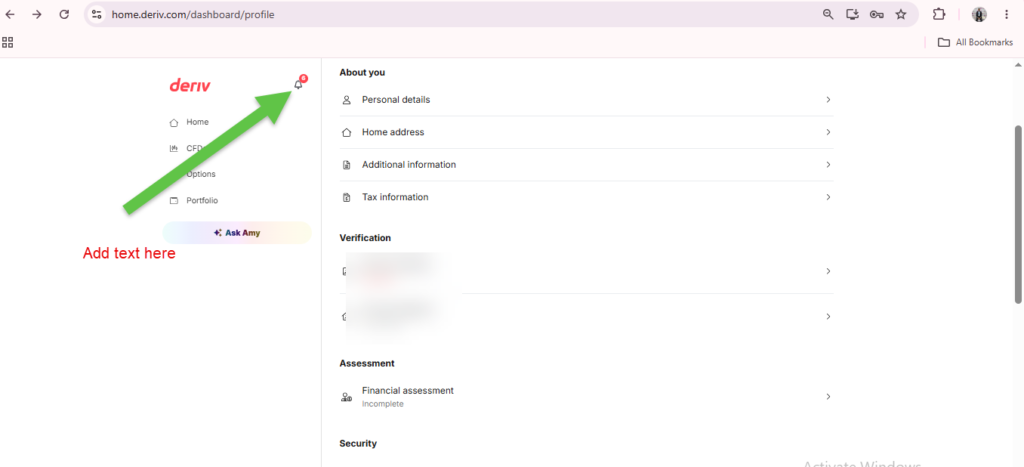
Step 1: Locate the Bell Icon
Log into Deriv, and you’ll find the bell icon in the top right corner of the dashboard, next to your profile icon.

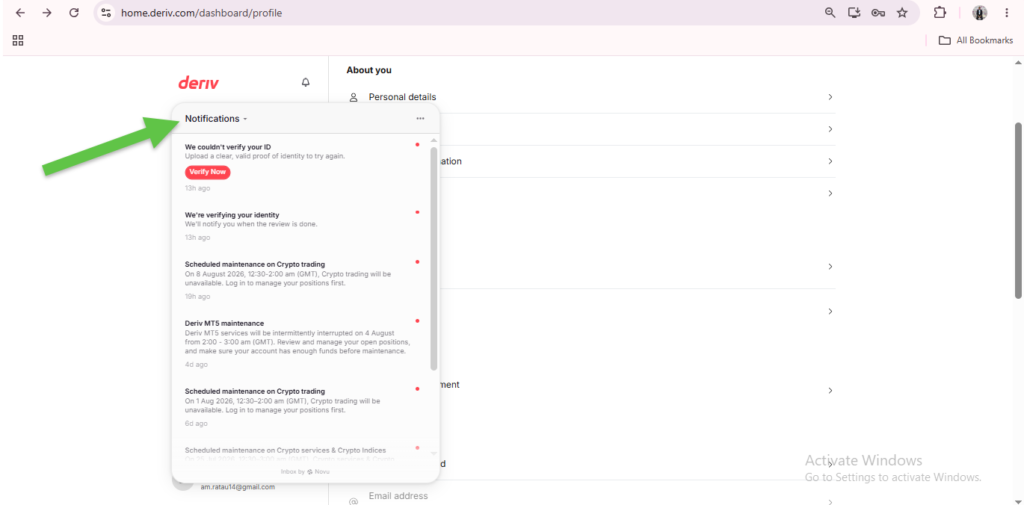
Step 2: Click to Open Notifications
Clicking the bell opens a panel listing recent alerts, covering things like completed trades, transaction updates, and security notices.
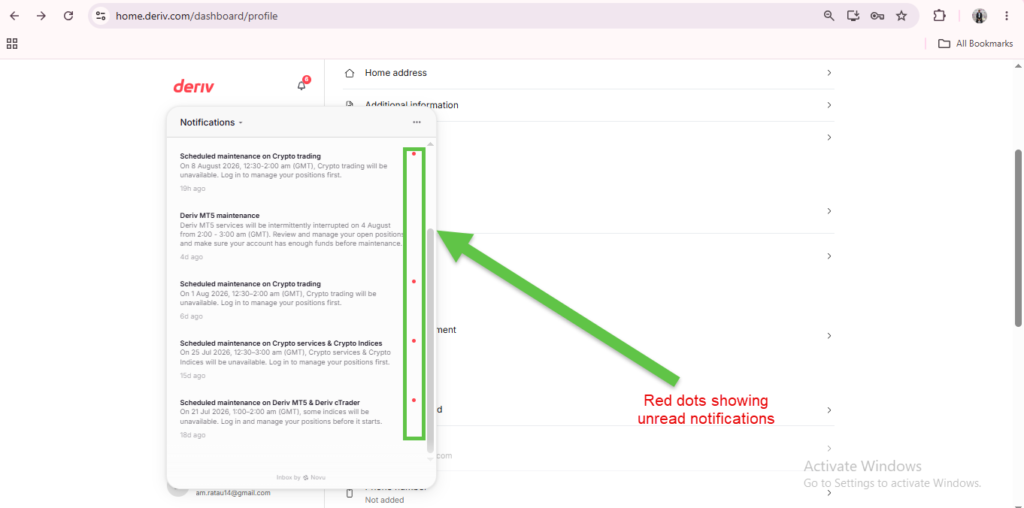
Step 3: Check for Unread Alerts
Unread notifications are typically marked, often with a small dot or badge on the bell icon itself, so you can quickly see if anything new needs your attention.

Step 4: Click Into a Notification for More Detail
Some notifications, particularly around deposits or withdrawals, link directly to the relevant Wallet or transaction when clicked. You can learn more about How to deposit on Deriv here.
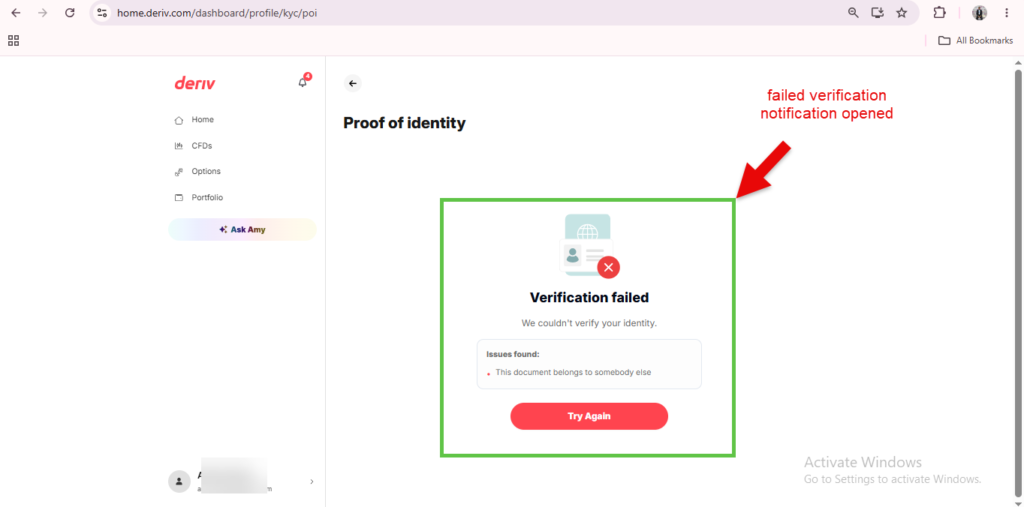
Step 5: Review Security-Related Alerts Carefully
Notifications about login attempts from new devices or locations are worth reading closely, since they can be an early sign of unauthorized access.
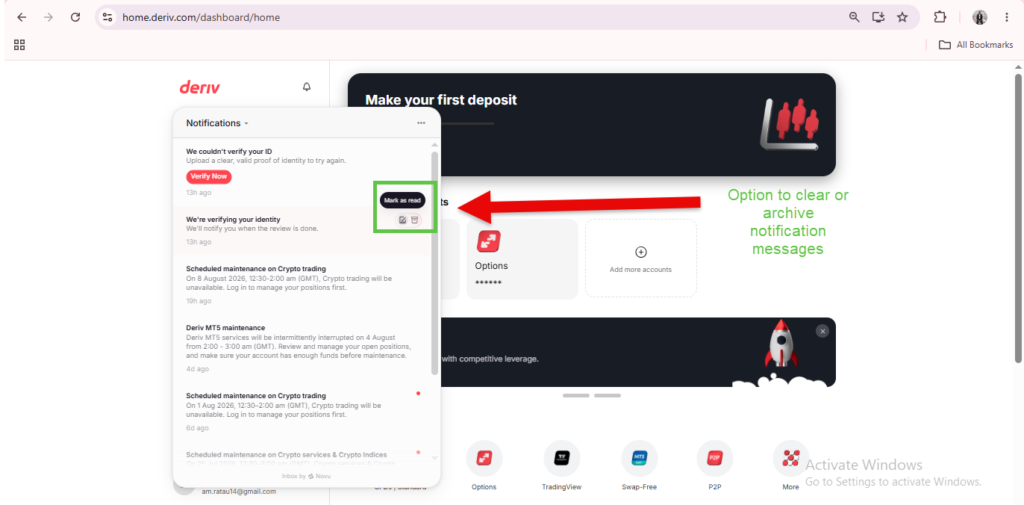
Step 6: Clear or Archive Old Notifications
Once you’ve reviewed a notification, the panel lets you mark it as read or clear it, keeping the list manageable going forward.
Staying on Top of Account Activity
Checking notifications regularly, especially after deposits, withdrawals, or unfamiliar logins, is a simple habit that catches most issues early. If a notification points you toward account security, our guide on How to Secure Your Deriv Account from Unauthorized Access is worth a read too.
For traders still getting used to Deriv’s dashboard features, this guide from The Forex Affiliate covers the basics alongside account setup.
Notifications on Deriv are one of those small features people overlook until they realize how much they’re actually keeping tabs on — price alerts, account updates, platform news, all landing in one spot instead of pulling you off to check five different places. It’s a small design touch, but it’s the kind of detail that makes a platform easier to recommend to people who value not missing a beat. If you’ve ever thought about putting your recommendations to work for you, this is a good example of the little things worth pointing out to your audience. And if you’re still working out how to structure that side of things, this is a solid place to figure out the rest — turning an audience’s attention into something sustainable.
FAQ: Viewing Notifications on Deriv
Where exactly is the notifications bell located? It’s in the top right corner of the Deriv dashboard, usually next to your profile icon.
What kinds of alerts show up in notifications? Trade confirmations, transaction updates, and security-related notices are the most common types shown.
Can I turn off certain notification types? Some notification categories can be adjusted through your account’s communication preferences, separate from the bell icon itself.
Do notifications appear on the mobile app too? Yes, the same notification system is generally available on Deriv’s mobile app, in a similar location.